Dev-C++ Editor and Compiler Setup
You have two options for C/C++; installing one is enough
2. VS Code + MSYS2: You write code in VS Code and compile it with
gcc in the terminal. You see all simulation folders in one window; a PATH setting is needed.Decide which one you want to continue with and follow only the steps on that page.
What is Dev-C++?
Dev-C++ is a free and simple development environment (IDE) for C and C++. The editor and the TDM-GCC compiler come together in one setup; you do not need to install a separate compiler or change the PATH setting. You can compile and run your code with one key (F11).
On this page we install Dev-C++ step by step and run your first C code in the garage simulation.
- Free and open source
- Windows 10 / 11
- Dev-C++ 5.11 + TDM-GCC 4.9.2 compiler
- No PATH setting needed
- Setup time: about 5–10 minutes
Download the Dev-C++ installer
Open the Dev-C++ setup files page on SourceForge in your browser:
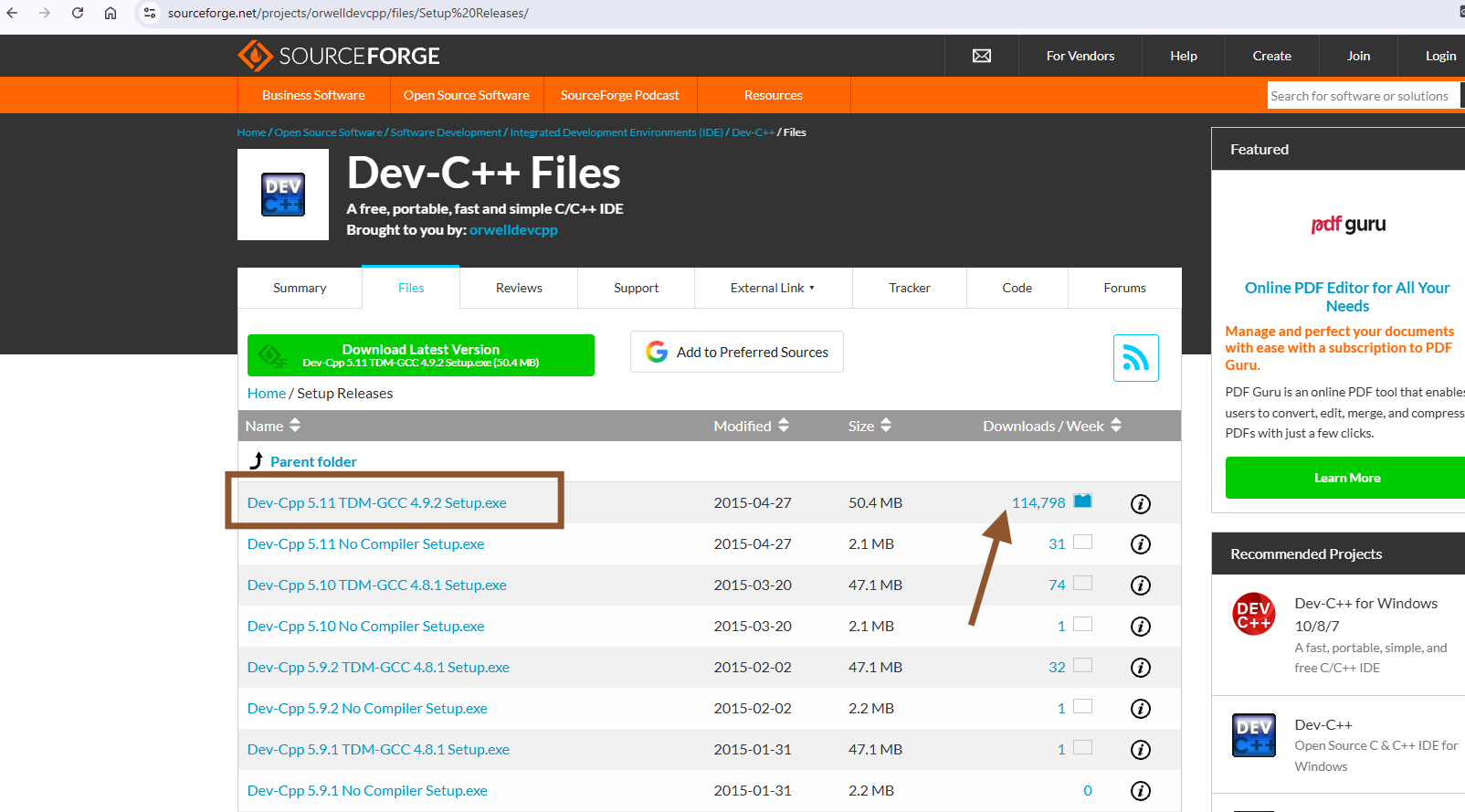
sourceforge.net/projects/orwelldevcpp/files/Setup Releases/
The list shows all versions of Dev-C++. Click the top file, Dev-Cpp 5.11 TDM-GCC 4.9.2 Setup.exe (marked with a frame in the picture). The Downloads / Week column shows that this is the most downloaded version (shown with an arrow in the picture).
The file with TDM-GCC in its name installs the Dev-C++ editor together with a C/C++ compiler. Do not download the files with No Compiler in their name; they have no compiler and cannot build your code.
Wait for the download to start
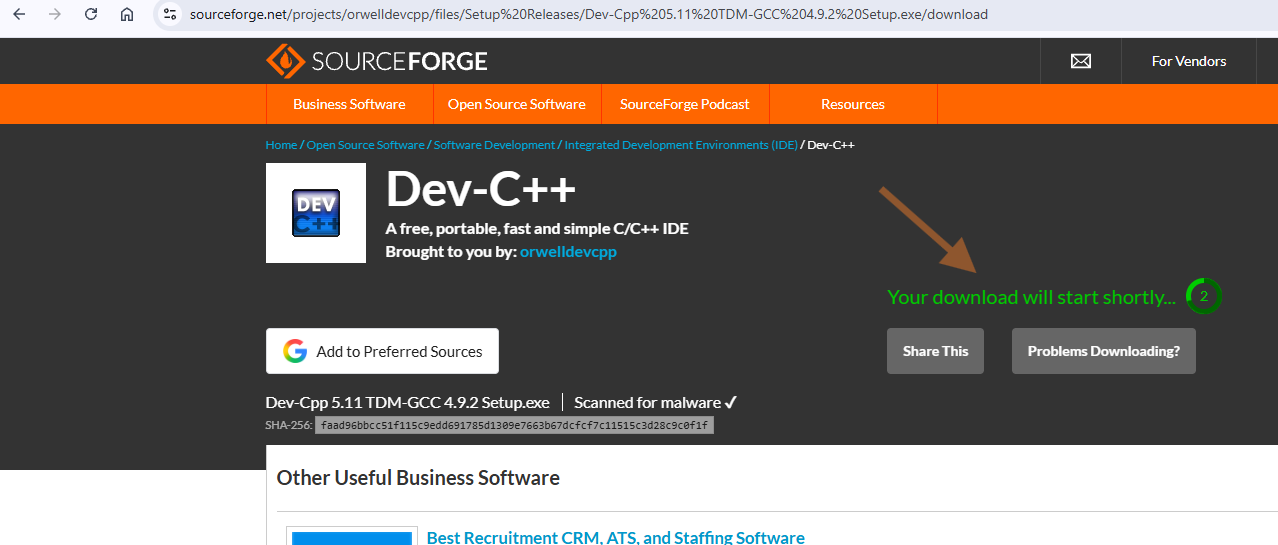
SourceForge opens a new page and shows a countdown with Your download will start shortly... (shown with an arrow in the picture). Wait a few seconds; the download starts by itself.
Do not click the ads or suggestions such as Other Useful Business Software on the page; they are not related to Dev-C++.
Run the downloaded setup file
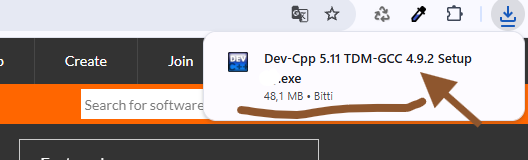
When the download finishes, click the download icon (down arrow) in the top right corner of your browser. You will see the Dev-Cpp 5.11 TDM-GCC 4.9.2 Setup.exe file in the list (about 50 MB, marked in the picture). Click the file to start the installation.
If you cannot see it in the list, look in the Downloads folder in Windows Explorer.
If Windows asks "Do you want to allow this app to make changes to your device?", click Yes.
Choose the installer language
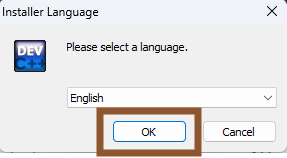
The setup starts with the Installer Language window and asks for the language of the setup screens. Choose a language from the list (English in the example) and click OK (marked with a frame in the picture).
This only sets the language of the setup screens; we choose the language of Dev-C++ itself in step 10.
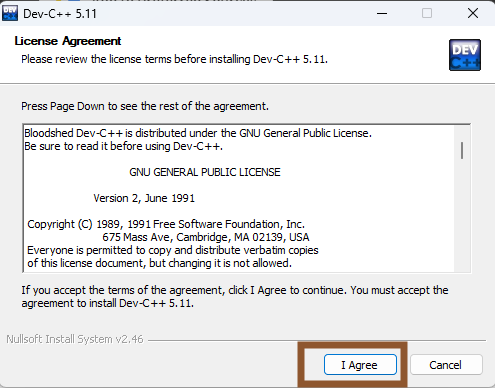
Accept the license agreement
The License Agreement screen shows the Dev-C++ license text. Dev-C++ is a free, open-source program distributed under the GNU General Public License.
Click I Agree to continue the setup (marked with a frame in the picture).
Confirm the components to install
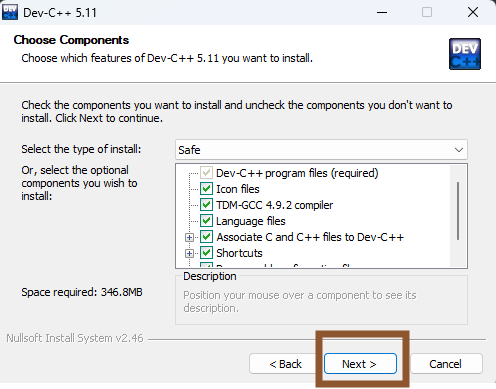
The Choose Components screen lists the parts to install. Keep the default selection; check that TDM-GCC 4.9.2 compiler (the C/C++ compiler) is ticked in the list.
Click Next (marked with a frame in the picture).
Confirm the installation folder and install
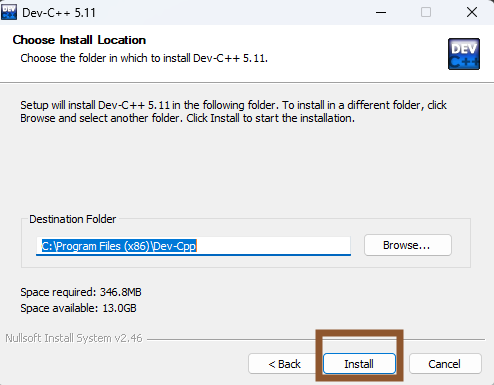
The Choose Install Location screen shows where Dev-C++ will be installed. The default folder is C:\Program Files (x86)\Dev-Cpp; you do not need to change it.
Click Install to start the installation (marked with a frame in the picture).
Wait for the installation to finish
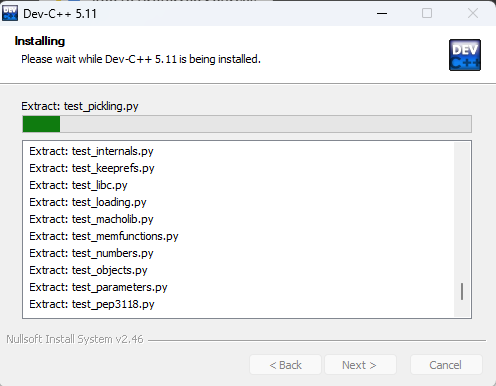
On the Installing screen the Dev-C++ and compiler files are copied (Extract: ...). Wait until the progress bar is full; since many files are installed with the compiler, this may take a few minutes.
You do not need to press any button meanwhile.
Finish the setup and open Dev-C++
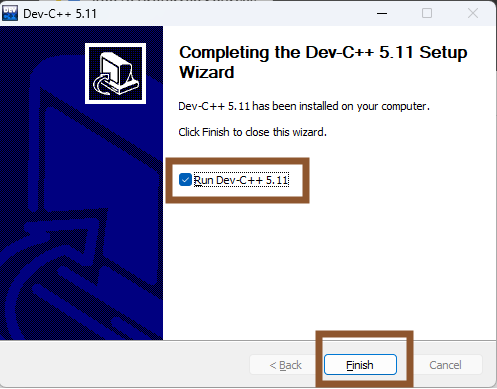
The Completing the Dev-C++ 5.11 Setup Wizard screen shows that the installation is complete.
Make sure the Run Dev-C++ 5.11 box is ticked and click Finish (both marked with a frame in the picture). The setup window closes and Dev-C++ opens for the first time.
Make the first-time settings
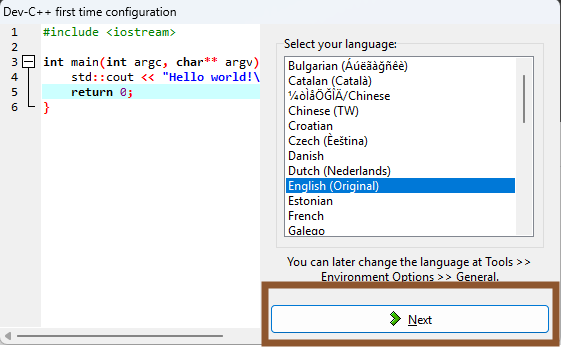
On the first start, Dev-C++ shows the Dev-C++ first time configuration window. Here you can choose the menu language of the program (Select your language), then the font and color theme. The sample code on the left shows how your choices will look.
Choose a language (English (Original) in the example) and click Next (marked with a frame in the picture). On the next screen you can keep the default font and theme and click Next again.
You can change the language later from Tools → Environment Options → General.
Complete the settings
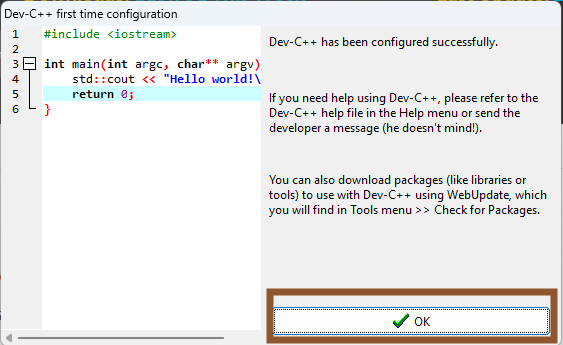
The Dev-C++ has been configured successfully. message shows that the settings are complete.
Click OK (marked with a frame in the picture). The main Dev-C++ window opens. The setup is complete; since Dev-C++ uses its own compiler, you do not need to install another compiler or change the PATH setting.
Start the simulation and open the start file
Now let's run our first C code in a simulation. In the example we use the Garage simulation.
1. Open UDUSimp, select Garage from the left menu and click Start Simulation at the bottom right. The simulation opens in a separate window.
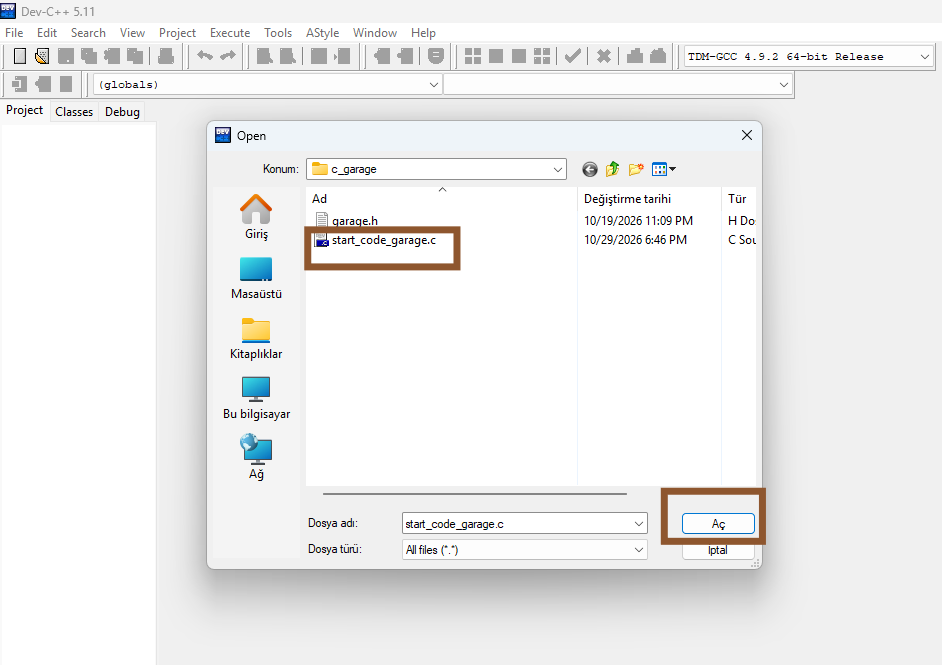
2. In Dev-C++, click File → Open... in the top menu (marked with a frame in the picture) or press Ctrl+O.
The order matters: start the simulation first, then run your code. sim_connect() in your code connects to the running simulation.
c_garage folder in D:\workspace), follow the workspace steps on the UDUSimp Setup page first. C / C++ must be ticked in the programming languages when you create the workspace.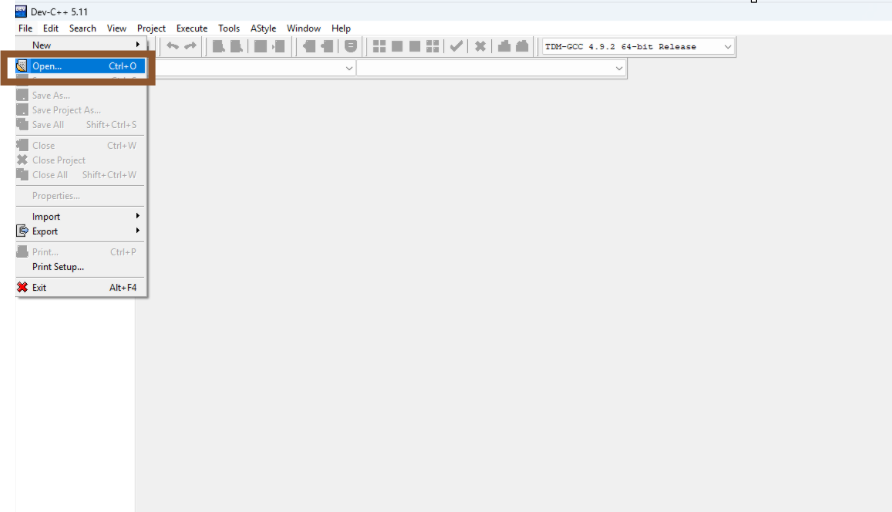
Select the code file from your workspace
In the Open window, go to your UDUSimp workspace and open the C folder of the simulation, in the example:
D:\workspace\c_garage
The folder has two files: the garage.h library file and the start_code_garage.c start code. Select start_code_garage.c and click Open (both marked with a frame in the picture).
You do not need to open or change garage.h; the start code uses it by itself with the #include "garage.h" line.
Raise the garage door with code
The picture shows Dev-C++ in the back, the program's command window in the middle and the running Garage simulation on the right.
1. Write the code: In the while(1) loop, write these two lines between //Code Here Start and // Code Here End and save the file (Ctrl+S):
door_motor(DOOR_UP);
printf("Door Up\n");
2. Compile and run: Click the Compile & Run button on the toolbar (shown with an arrow in the picture) or press F11. If you see Errors: 0 in the Compile Log tab at the bottom, your code compiled without errors.
The program's command window (CMD) opens and prints Door Up continuously; at the same time the garage door starts moving up (shown with arrows in the picture). Congratulations, your first C code is controlling the simulation!
To stop the program, close the command window or press Ctrl+C in it.
.exe file and shows an error. If you see a connection error in the command window, check that the simulation window is open.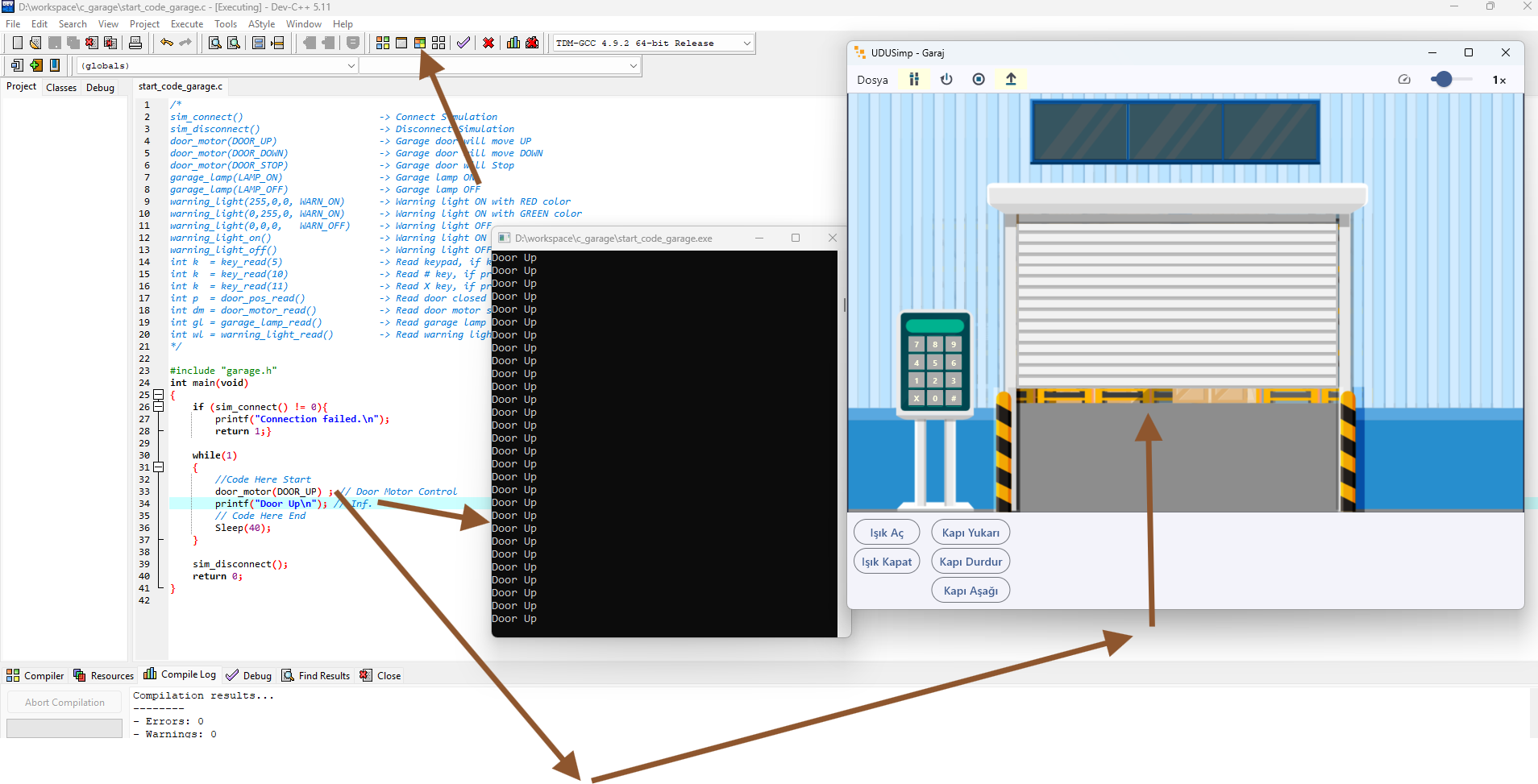
Next step
c_... folders in your workspace the same way.