Python Setup
Why do you need Python?
Code written in Python is run on your computer by the Python interpreter. Unlike C, Python has no separate compile step; your code runs directly with the python file.py command. VS Code is an editor and does not include Python. On this page we install Python 3 step by step, try it in VS Code and run your first Python code in the garage simulation.
If you will only use C/C++, you do not need this setup.
- Free
- Windows 10 / 11, 64-bit
- Python 3 (latest stable version)
- "Add python.exe to PATH" must be ticked
- Setup time: about 5 minutes
Download the Python installer
Open the official Python download page for Windows in your browser:
python.org/downloads/windows
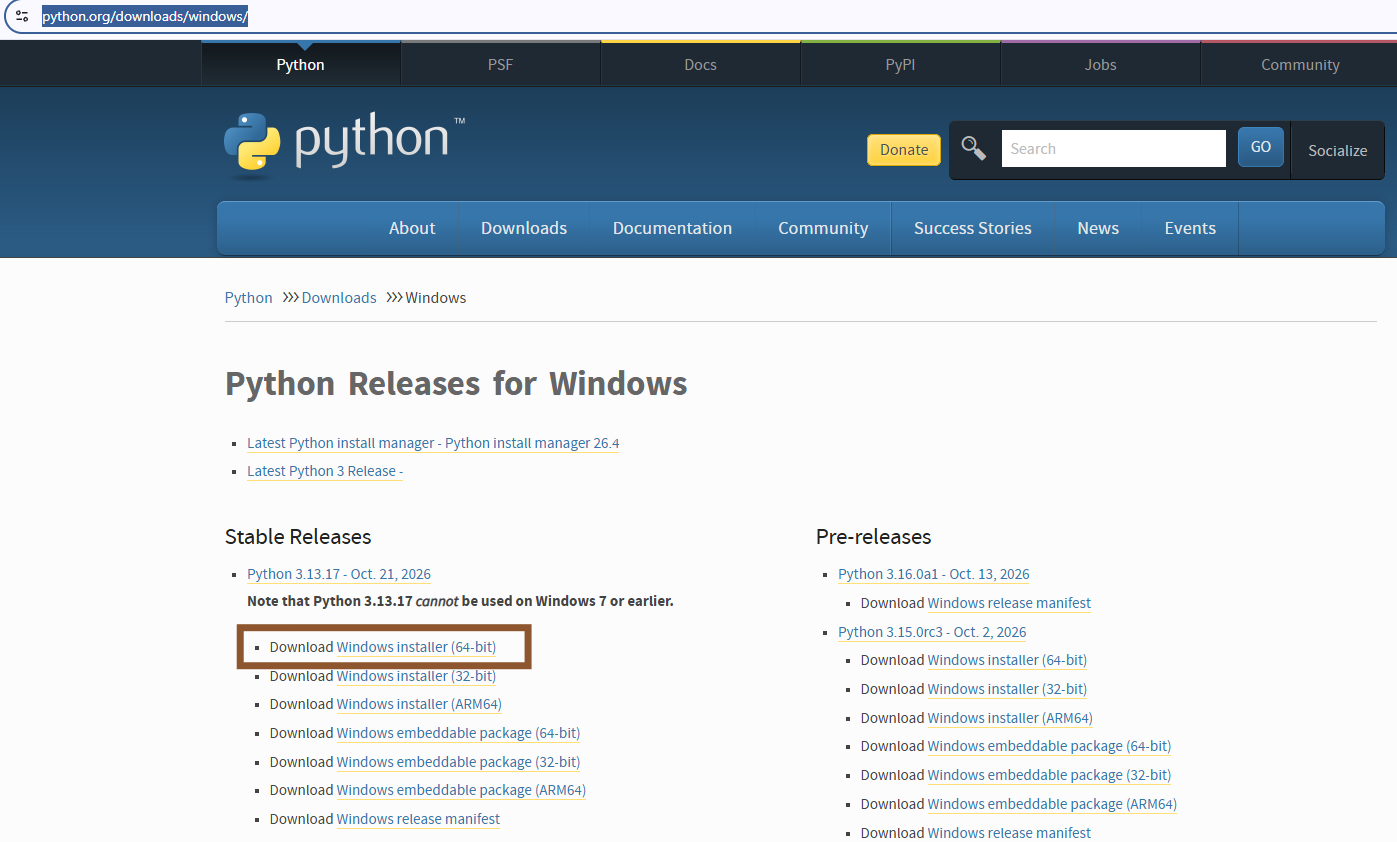
Find the top Python 3 version under Stable Releases. Click the Download Windows installer (64-bit) link under that version (marked with a frame in the picture). The download starts right away.
The version number (3.13.17 in the picture) changes as new versions are released; always download the top stable version in the list.
Do not download the files under Pre-releases; those versions are still being tested. The ARM64 link is only for computers with ARM processors.
Run the downloaded setup file
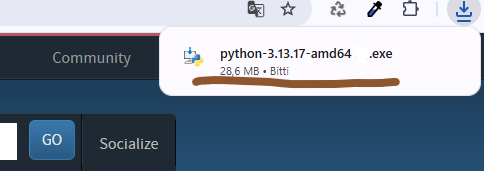
When the download finishes, click the download icon (down arrow) in the top right corner of your browser. You will see the python-3.xx.x-amd64.exe file in the list (about 30 MB, marked in the picture). Click the file to start the installation.
amd64 in the file name means the 64-bit version; it is the right file for computers with Intel processors too.
If you cannot see it in the list, look in the Downloads folder in Windows Explorer.
Tick the setup options and start the installation
The Install Python 3.xx (64-bit) window opens. Before starting the installation, tick both boxes at the bottom of the window (shown with arrows in the picture):
1. Use admin privileges when installing py.exe – installs the py launcher for all users.
2. Add python.exe to PATH – registers Python with Windows; this is the most important setting.
Then click Install Now at the top (marked with a frame in the picture). This installs Python with the IDLE editor and the pip package manager using the default settings.
If Windows asks "Do you want to allow this app to make changes to your device?", click Yes.
python opens the Microsoft Store or shows a "not recognized" error. If you forgot the box, run the setup file again, choose Modify and tick Add Python to environment variables.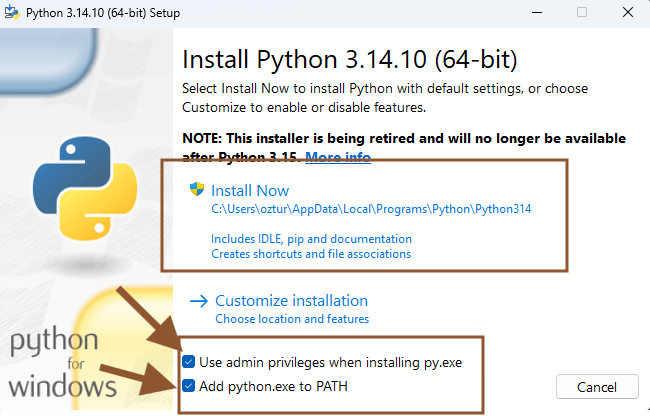
Wait for the installation to finish
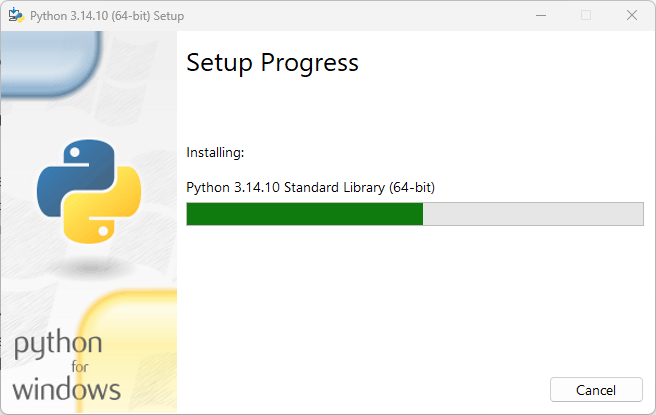
On the Setup Progress screen the Python files are copied (Installing: ...). Wait until the progress bar is full; this usually takes a minute or two.
You do not need to press any button meanwhile. Do not press Cancel.
Finish the setup
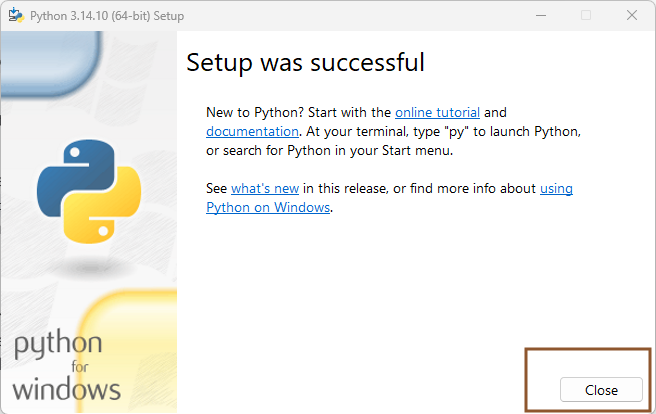
The Setup was successful message shows that Python is installed. Click Close to close the setup window (marked with a frame in the picture).
If UDUSimp is open: Press the Check again (refresh) button in the programming languages section; the "Compiler not installed" warning for Python changes to "Compiler installed".
Open a new terminal in VS Code
Now let's check that Python works from VS Code.
If VS Code is open, close it completely and open it again; VS Code reads the PATH setting only when it starts.
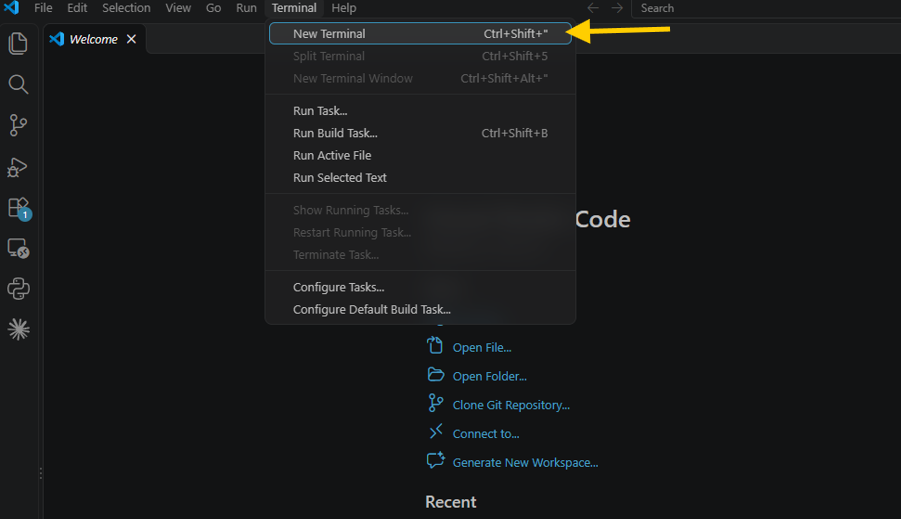
In the top menu, click Terminal → New Terminal (shown with an arrow in the picture) or press Ctrl+Shift+".
If VS Code is not installed yet, follow the VS Code Editor Setup page first.
Try Python in the VS Code terminal
In the Terminal tab at the bottom of VS Code, in order (shown with arrows in the picture):
1. Type python and press Enter. The Python version information appears and the prompt changes to >>>; you can now type Python commands.
2. Type print("hello") and press Enter.
If you see hello on the next line, the installation is successful.
To leave the Python prompt, type exit() and press Enter.
python opens the Microsoft Store or shows "python is not recognized", Python is not registered with Windows. Turn on Add python.exe to PATH as described in the note of step 3, then close VS Code completely and open it again. Opening a new terminal is not enough.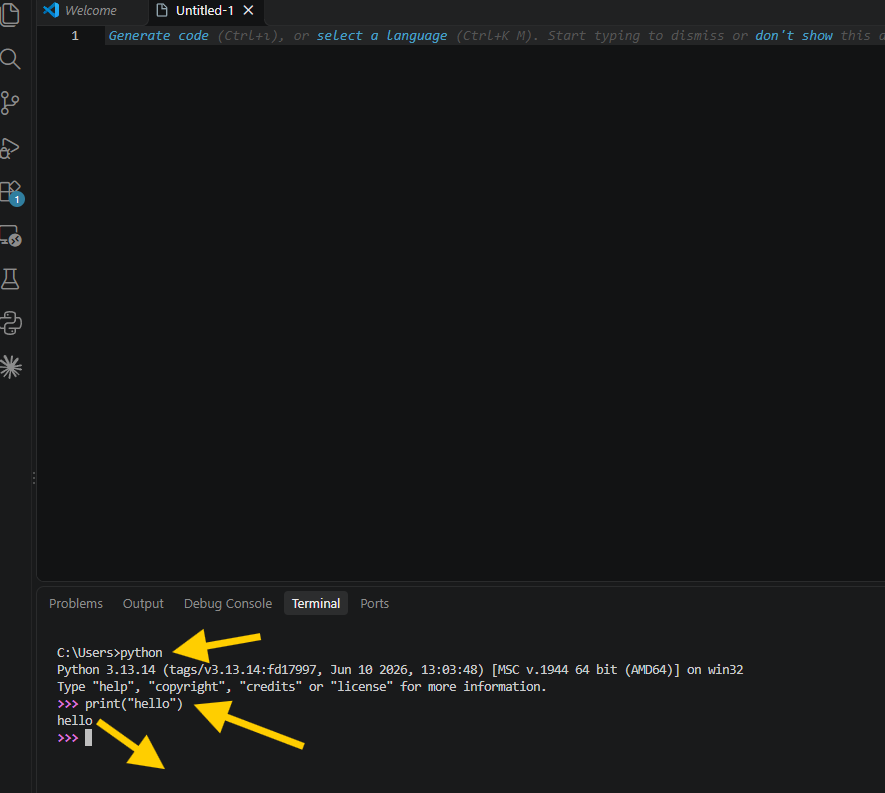
Start the simulation in UDUSimp and open VS Code
Now let's run our first Python code in a simulation. In the example we use the Garage simulation.
1. Open UDUSimp. In the programming languages section, Python must be ticked and show a green Compiler installed next to it.
2. Select the Garage simulation from the left menu.
3. Click Start Simulation at the bottom right (shown with an arrow in the picture). The simulation opens in a separate window.
4. Click Open in VS Code at the top right (shown with an arrow in the picture). Your workspace opens in VS Code.
The order matters: start the simulation first, then run your code. sim_connect() in your code connects to the running simulation.
py_garage folder in D:\workspace), follow the workspace steps on the UDUSimp Setup page first.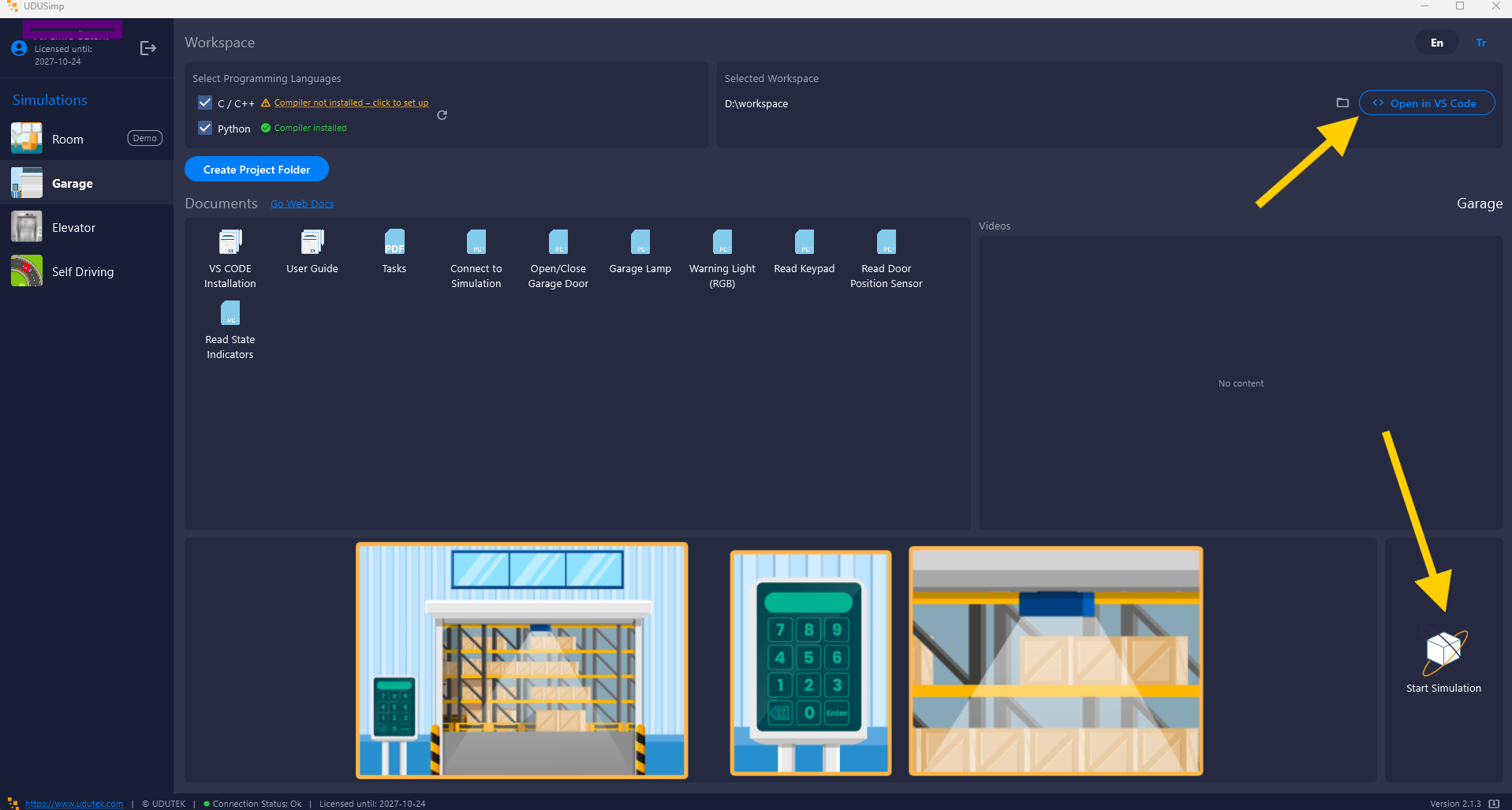
Run the start code from the terminal
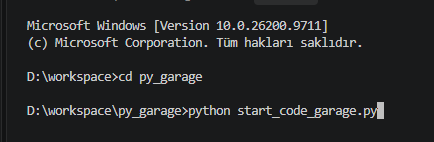
In VS Code, open a terminal with Terminal → New Terminal. The terminal opens in the workspace folder (e.g. D:\workspace>). Type these commands in order and press Enter after each one:
cd py_garage
python start_code_garage.py
The first command moves into the Python folder of the garage simulation; the second runs the start code. The library file garage.py is in the same folder, so no extra setup is needed.
To switch to another simulation's folder, first go back to the workspace with cd ...
Raise the garage door with code
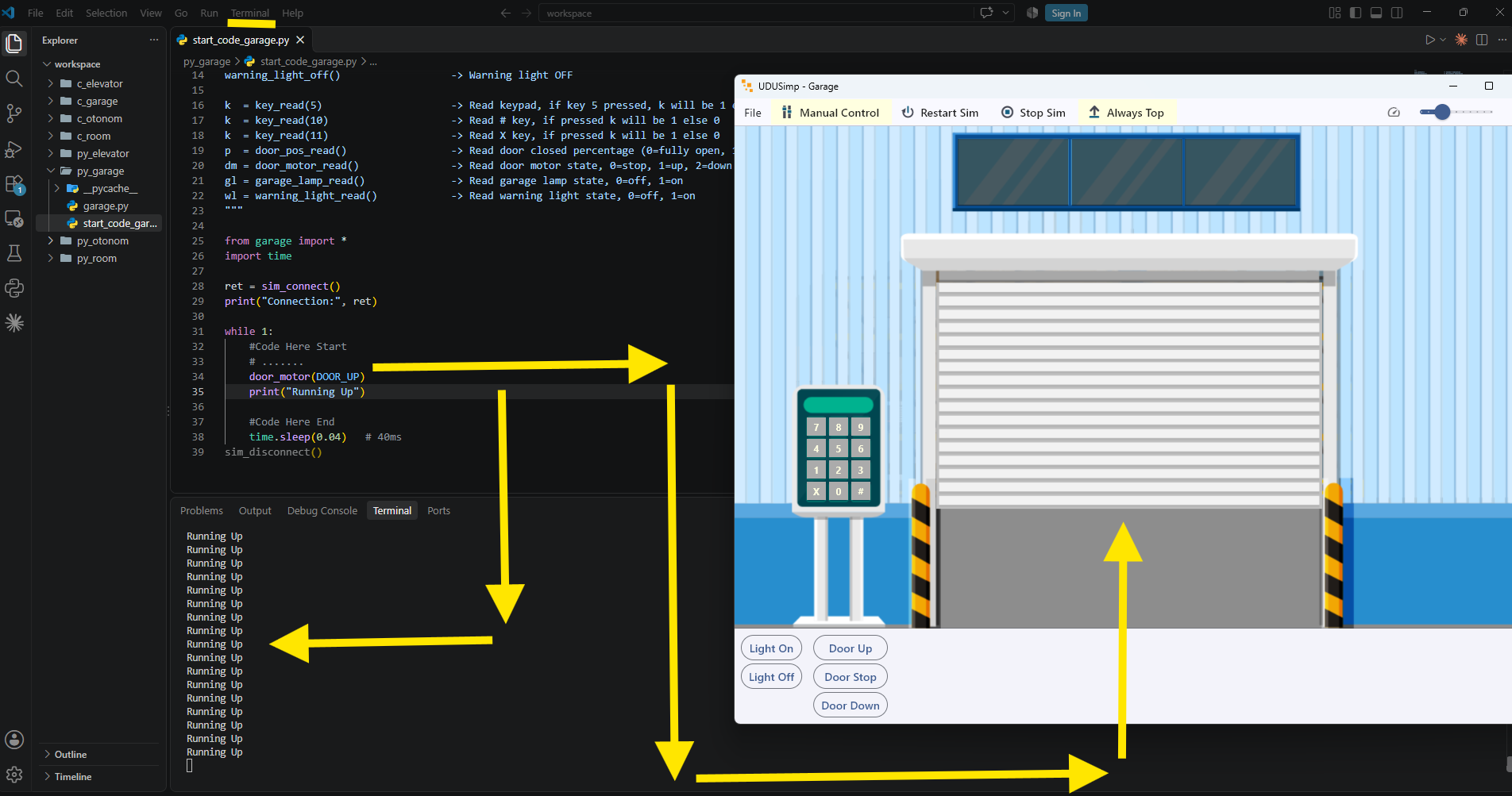
The picture shows VS Code on the left and the running Garage simulation on the right.
1. Open the file: In the Explorer panel on the left, open the py_garage folder and click start_code_garage.py. The beginning of the file lists the library functions.
2. Write the code: In the while 1: loop, write these two lines between #Code Here Start and #Code Here End and save the file (Ctrl+S):
door_motor(DOOR_UP)
print("Running Up")
3. Run it: Run the python start_code_garage.py command in the terminal again.
The garage door starts moving up and Running Up is printed continuously in the terminal (shown with arrows in the picture). Congratulations, your first Python code is controlling the simulation!
To stop a program with an endless loop, press Ctrl+C in the terminal.