C/C++ Compiler Setup
You have two options for C/C++; installing one is enough
gcc in the terminal. You see all simulation folders in one window; a PATH setting is needed.2. Dev-C++: The editor and compiler come in one setup and no PATH setting is needed; you compile and run your code with F11. Choose this if you want an easier start.
Decide which one you want to continue with and follow only the steps on that page.
Why do you need a C/C++ compiler?
Code written in C and C++ must first be turned into a runnable program (.exe) by a compiler. VS Code is an editor and has no compiler of its own. On this page we install the MinGW-w64 gcc compiler step by step with the free MSYS2 platform.
If you will only use Python, you do not need this setup.
- Free
- Windows 10 / 11, 64-bit
- Installation folder: C:\msys64
- About 1 GB of disk space
- Setup time: about 10–15 minutes
Download the MSYS2 installer
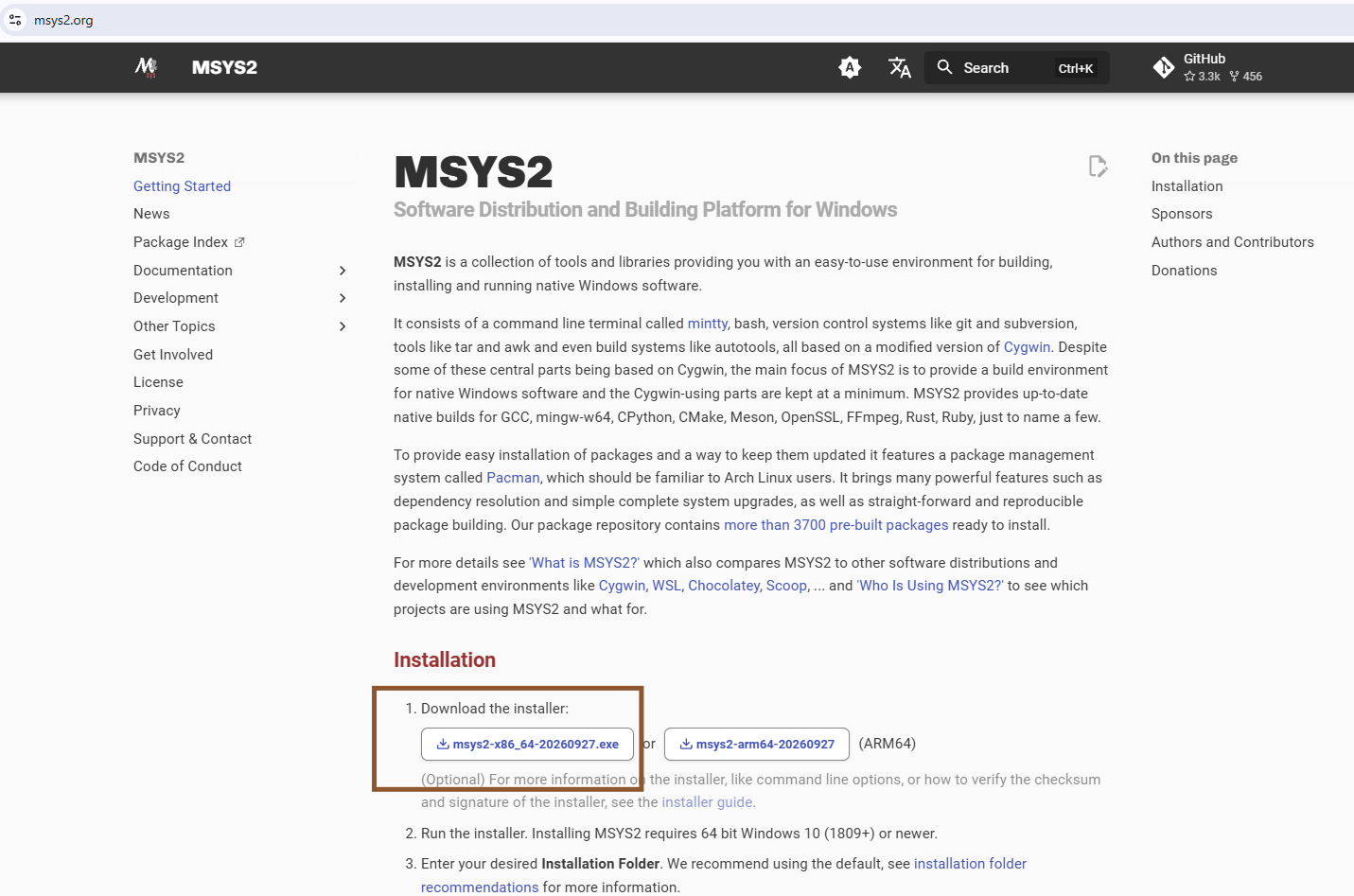
Open the official MSYS2 website in your browser:
msys2.org
Scroll down to the Installation section. Click the msys2-x86_64-....exe button in the 1. Download the installer line (marked with a frame in the picture). The download starts right away.
The date in the file name changes with the latest version on the site; always download the file from the site.
The arm64 file next to it is only for computers with ARM processors. The commands on this page are for the x86_64 version.
Run the downloaded setup file
When the download finishes, click the download icon (down arrow) in the top right corner of your browser. You will see the msys2-x86_64-....exe file in the list (about 80 MB, marked in the picture). Click the file to start the installation.
If you cannot see it in the list, look in the Downloads folder in Windows Explorer.
If Windows asks "Do you want to allow this app to make changes to your device?", click Yes.

Start the setup wizard
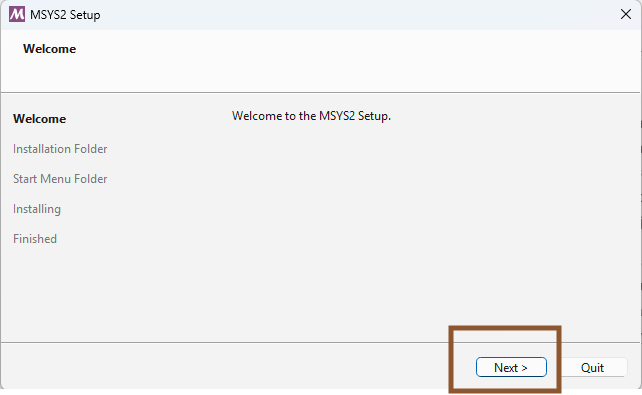
The MSYS2 Setup window opens with the Welcome to the MSYS2 Setup message. The list on the left shows the setup steps: Welcome, Installation Folder, Start Menu Folder, Installing, Finished.
Click Next (marked with a frame in the picture).
Confirm the installation folder
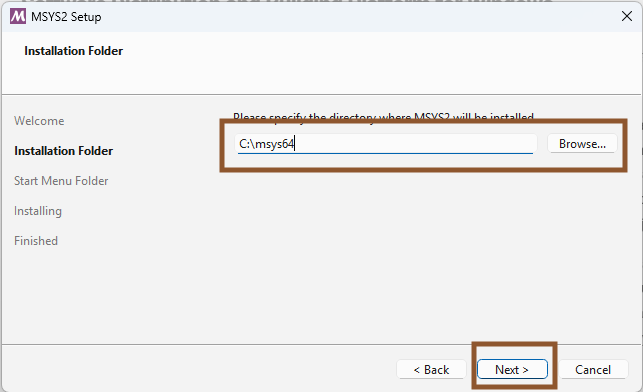
This screen asks where MSYS2 will be installed. The box shows C:\msys64 by default (marked with a frame in the picture). Do not change it; just click Next.
The PATH setting and the commands in the next steps are written for this folder.
Confirm the Start menu folder
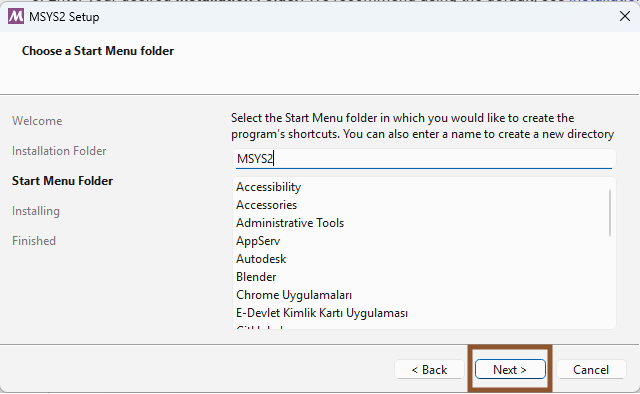
This screen asks which Start menu folder the MSYS2 shortcuts go into. Keep the default name MSYS2 and click Next (marked with a frame in the picture).
Wait for the installation to finish
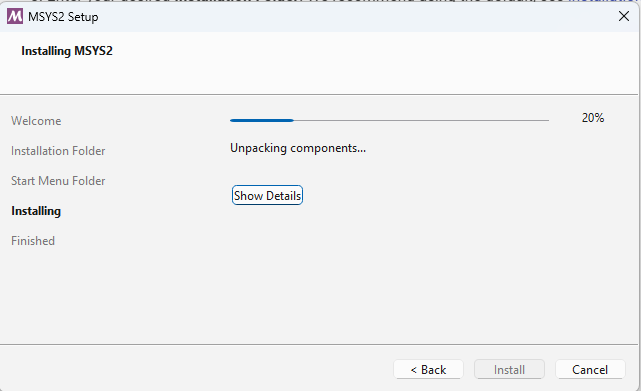
MSYS2 files are being copied (Installing MSYS2, Unpacking components...). Wait until the progress bar reaches 100%; this may take a few minutes depending on your computer.
You do not need to press any button meanwhile.
Finish the setup and open MSYS2
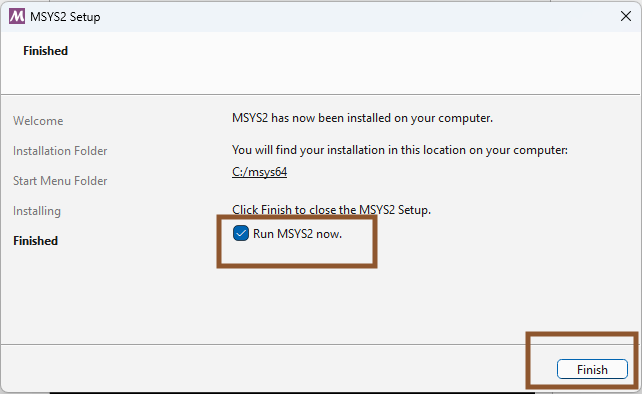
The Finished screen says MSYS2 has been installed in the C:/msys64 folder.
Make sure the Run MSYS2 now. box is ticked and click Finish (both marked with a frame in the picture). The setup window closes and the MSYS2 command window opens.
Install the C/C++ compiler package
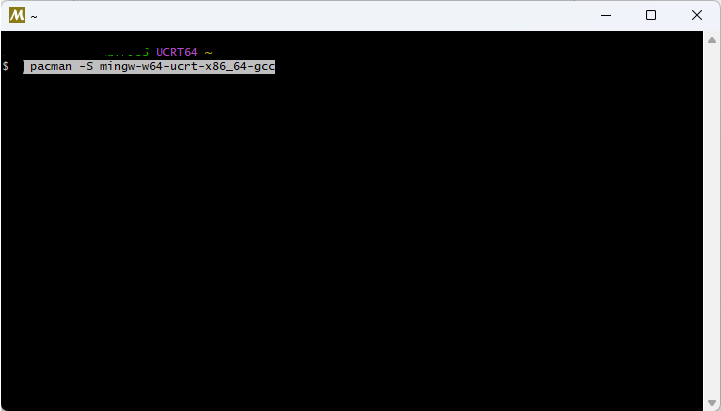
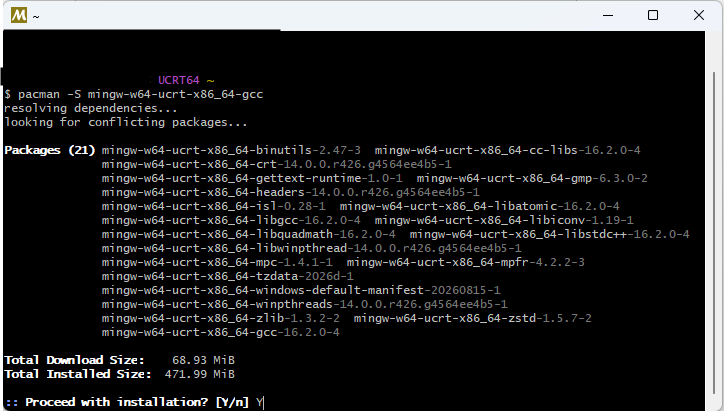
Type the command below in the MSYS2 command window and press Enter:
pacman -S mingw-w64-ucrt-x86_64-gcc
pacman is the MSYS2 package manager. This command downloads and installs the gcc (C) and g++ (C++) compilers and the files they need.
The $ sign at the start of the line is the prompt itself; do not type it.
Confirm the package installation
pacman shows the list of packages to install, the download size (about 70 MB) and the disk space they will use (about 470 MB).
At the Proceed with installation? [Y/n] question at the bottom, type Y and press Enter.
The capital Y in [Y/n] is the default answer; pressing Enter without typing anything also means "yes".
Wait for the download and installation
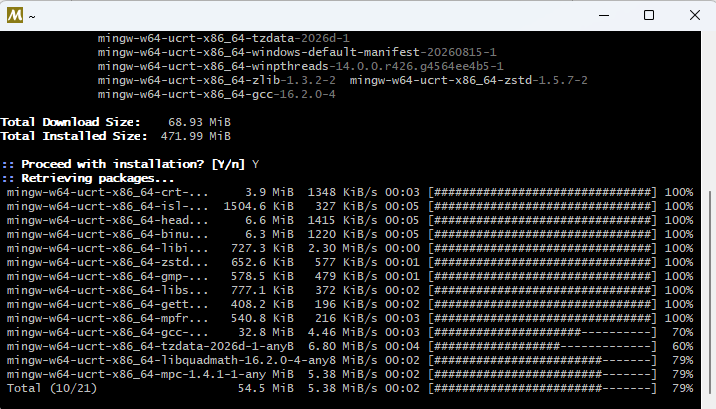
First the packages are downloaded (Retrieving packages...), then installed one by one (installing ...). Wait until every line shows 100%.
When the installation is done, the prompt ($) appears again. Do not close the window; we will check the installation in the next step.
Check the compiler in MSYS2
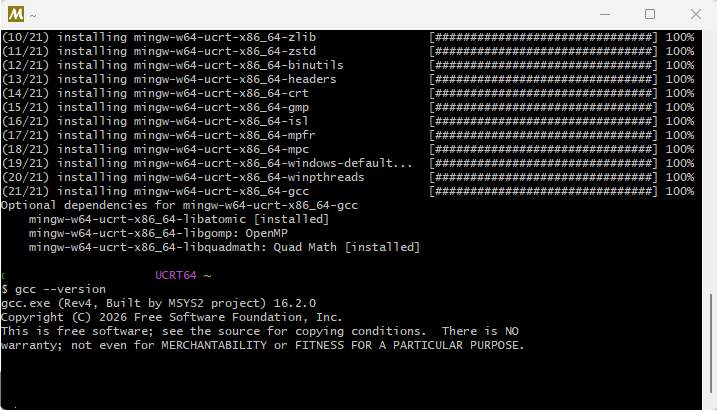
Type this command in the same window and press Enter:
gcc --version
If you see gcc.exe (Rev..., Built by MSYS2 project) and a version number as in the picture, the compiler is installed. Your version number may be different.
You can now close the MSYS2 window.
Open the System Properties window
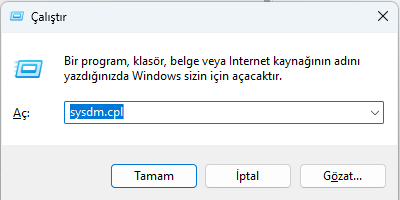
gcc only works in the MSYS2 window; the VS Code terminal and UDUSimp cannot find the compiler.Press Windows + R on your keyboard. In the Run window that opens, type this in the Open box:
sysdm.cpl
Then click OK. The System Properties window opens.
Click Environment Variables
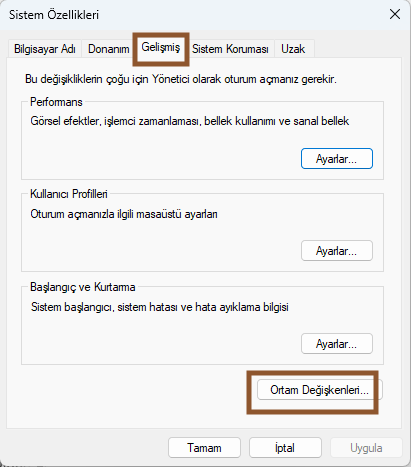
In the System Properties window, select the Advanced tab at the top. Click the Environment Variables... button at the bottom of the window (both marked with a frame in the picture).
Even if the window says you must be logged on as an administrator, the setting we make only affects your own user account and does not need administrator rights.
Edit Path in the user variables
The Environment Variables window has two lists. In the upper list, User variables for <your user name>, select the Path line (marked with a frame in the picture) and click the Edit... button just below it.
Do not change Path in the lower System variables list; it needs administrator rights and affects all users of the computer.
Path in the Variable name box and C:\msys64\ucrt64\bin in the Variable value box, click OK and continue with the last paragraph of step 16.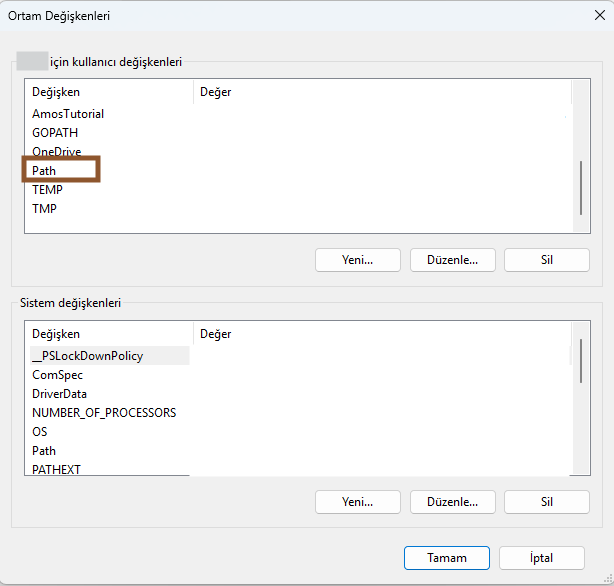
Add a new line
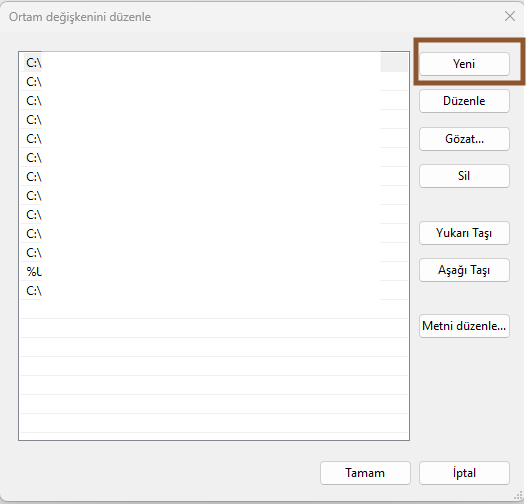
The Edit environment variable window opens. The list shows folders that were added on your computer before; do not change them.
Click the New button in the top right (marked with a frame in the picture). An empty line you can type in opens at the end of the list.
Type the compiler folder and save
Type this folder in the empty line and press Enter:
C:\msys64\ucrt64\bin
The line should appear at the end of the list as in the picture. This folder contains gcc.exe and g++.exe; when you type a command, Windows looks for the program in the folders listed in PATH.
Click OK (marked with a frame in the picture). Then close the Environment Variables and System Properties windows with OK as well. If you close them with Cancel or the X in the corner, the setting is not saved.
If UDUSimp is open: Press the Check again (refresh) button in the programming languages section; the "Compiler not installed" warning changes to "Compiler installed".
\) and no trailing space. If you installed MSYS2 to another folder in step 4, write that folder instead of C:\msys64.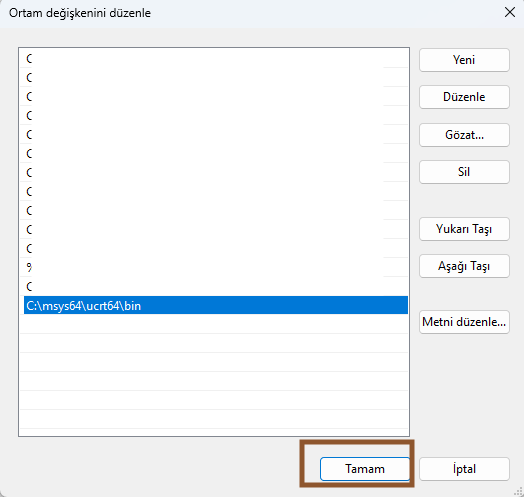
Open a new terminal in VS Code
Finally, let's check that the compiler also works from VS Code.
If VS Code is open, close it completely and open it again; VS Code reads the PATH setting only when it starts.
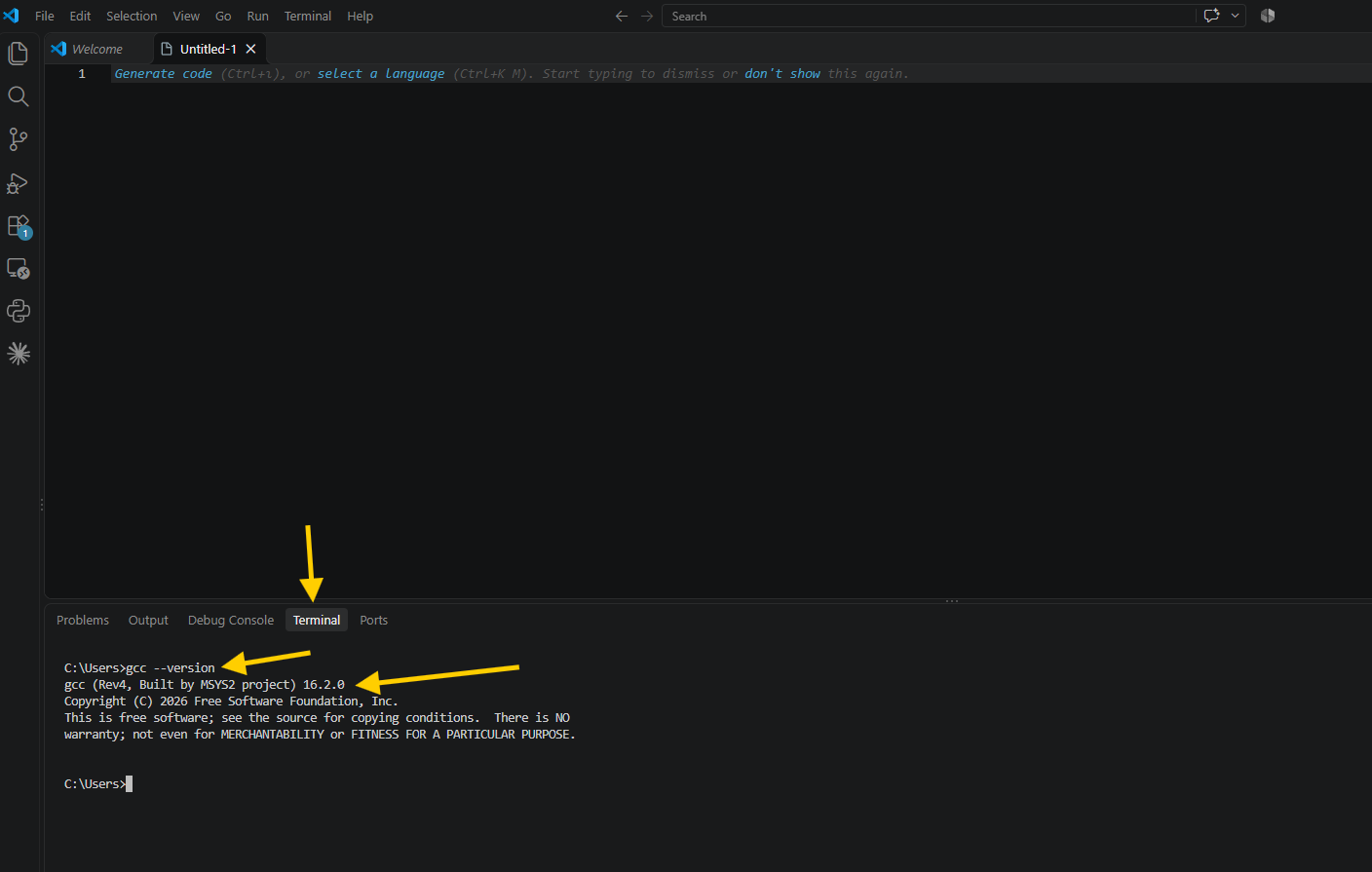
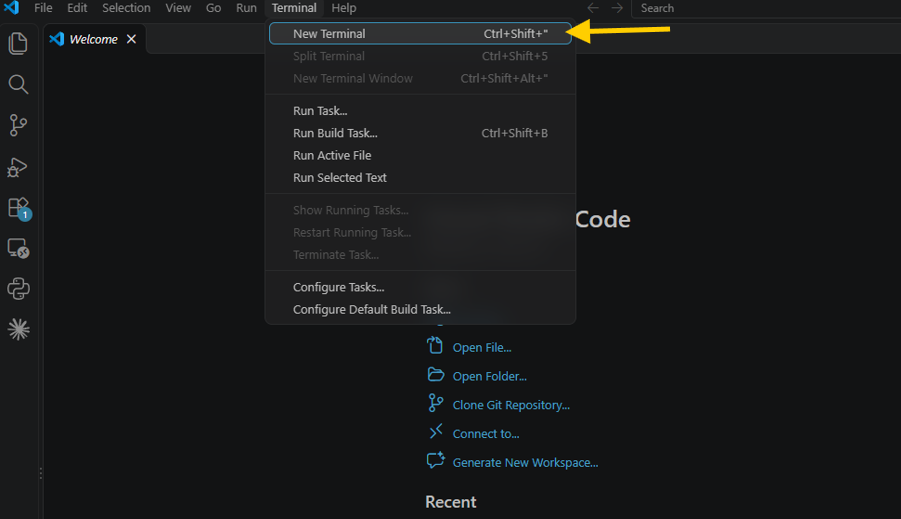
In the top menu, click Terminal → New Terminal (shown with an arrow in the picture) or press Ctrl+Shift+".
If VS Code is not installed yet, follow the VS Code Editor Setup page first.
Check the compiler in the VS Code terminal
The Terminal tab opens at the bottom of VS Code. Type this command in the terminal and press Enter:
gcc --version
If you see gcc (Rev..., Built by MSYS2 project) and a version number as in the picture, the installation is successful. You can now compile and run your C and C++ code for the UDUSimp simulations.
To check the C++ compiler too:
g++ --version
C:\msys64\ucrt64\bin) and close VS Code completely and open it again. Opening a new terminal is not enough.