UDUSimp Setup
Install UDUSimp and run your first code
This page shows step by step how to download and install UDUSimp, log in, create the workspace and run your first code in a simulation. We use Visual Studio Code to write code; if you have not installed it yet, follow the VS Code Editor Setup page first.
Download UDUSimp- Windows 10 / 11, 64-bit
- Setup file about 20 MB
- No administrator rights needed
- Room simulation is a demo, the others need a license
- Setup time: about 10 minutes
Open the download page
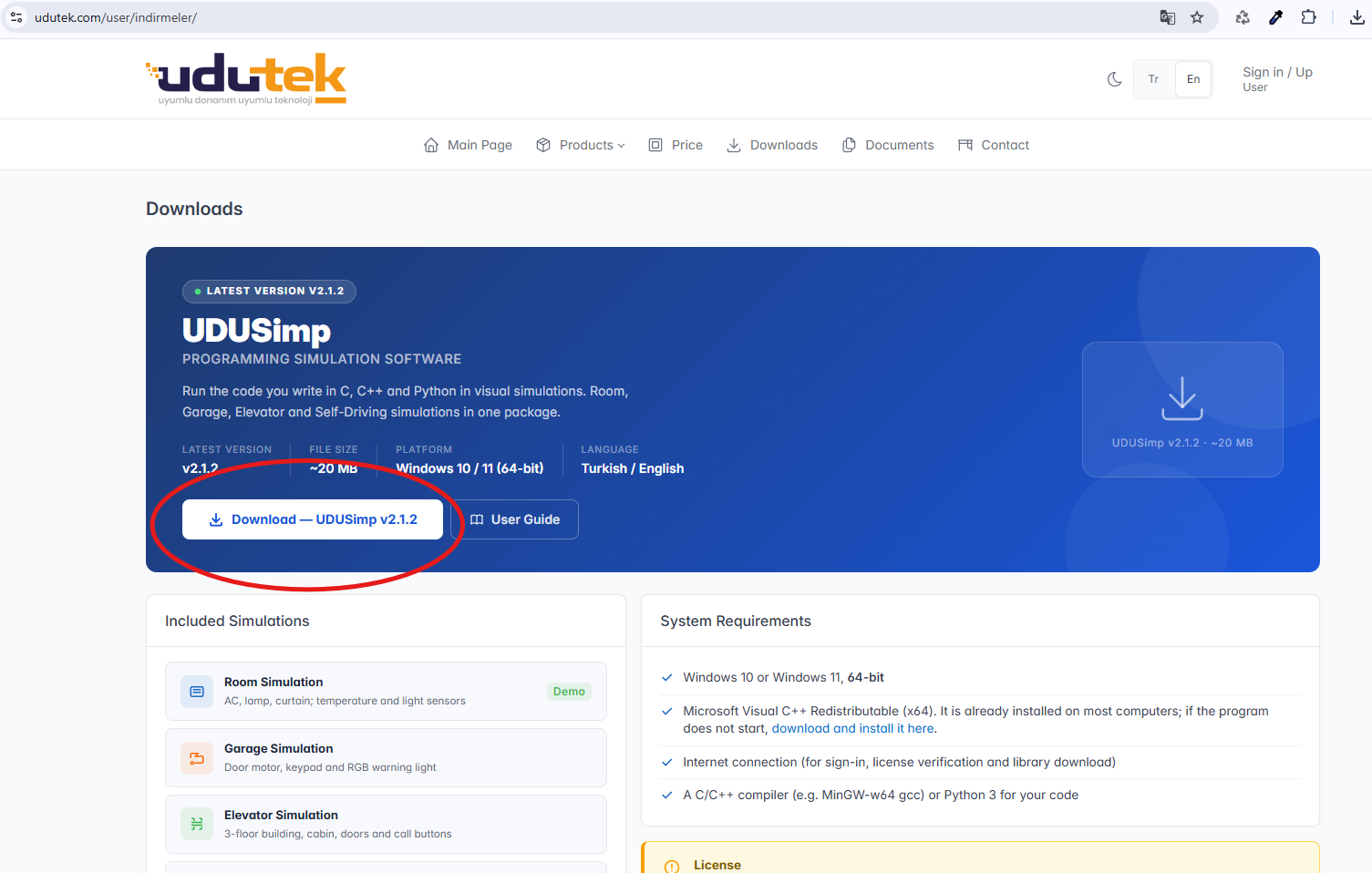
Open the UDUTEK download page in your browser:
udutek.com/user/download
Click the Download — UDUSimp v2.1.2 button (marked with a red circle in the picture). The version number on the button always shows the latest version.
UDUSimp runs on Windows 10 or 11 (64-bit). The setup file is about 20 MB.
Run the setup file
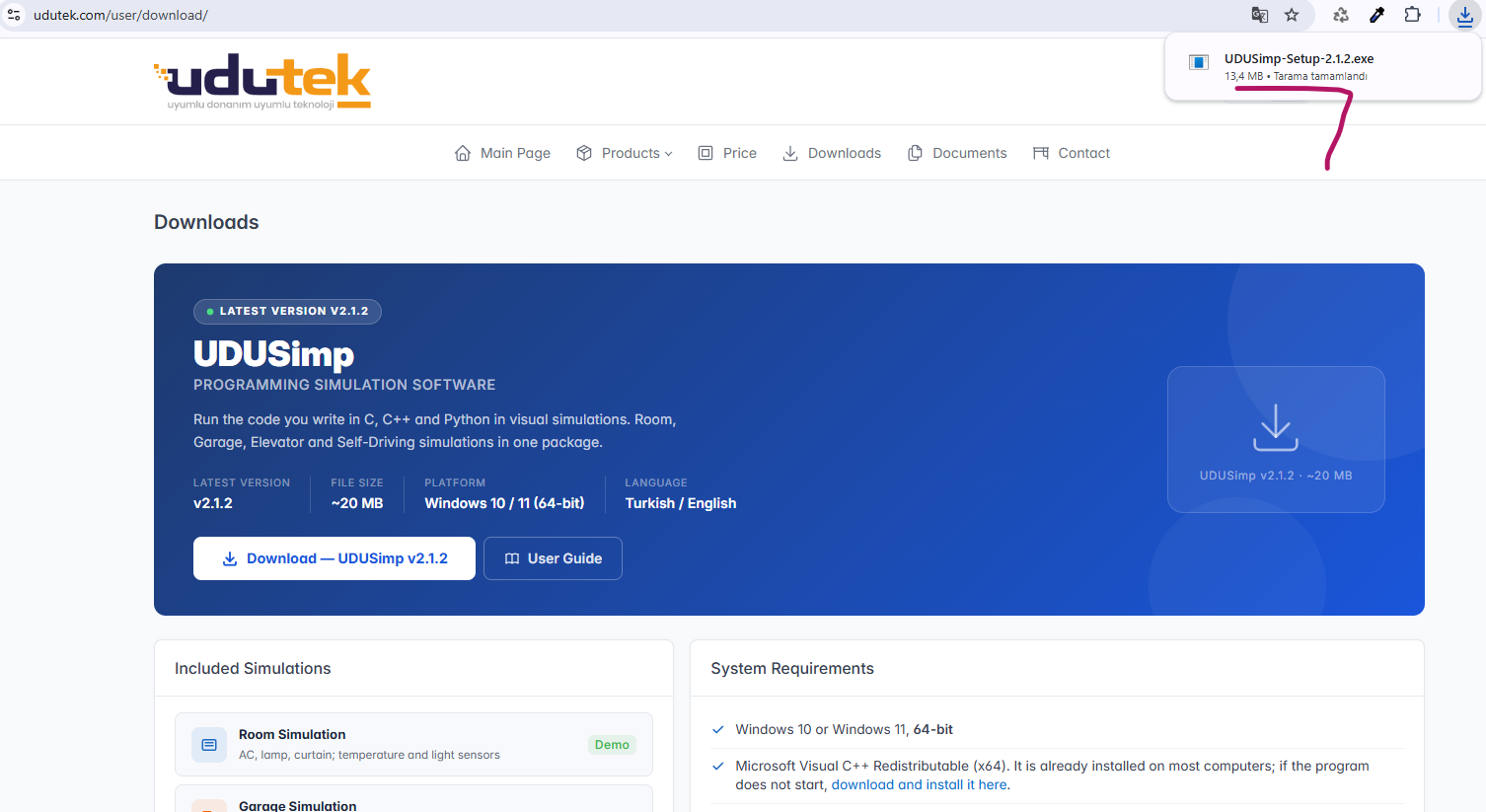
When the download finishes, click the download icon in the top right corner of your browser. You will see the UDUSimp-Setup-2.1.2.exe file in the list (marked in the picture). Click the file to start the installation.
If you cannot see it in the list, look in the Downloads folder in Windows Explorer.
The setup does not need administrator rights; the program is installed only for your user account.
Start the setup wizard
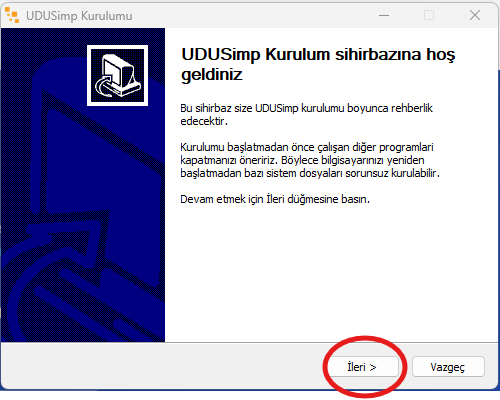
The Welcome to the UDUSimp Setup Wizard window opens. It is recommended to close other open programs.
Click Next to continue (marked in the picture; İleri in the Turkish wizard).
The setup wizard opens in Turkish or English depending on your Windows language.
Accept the license agreement
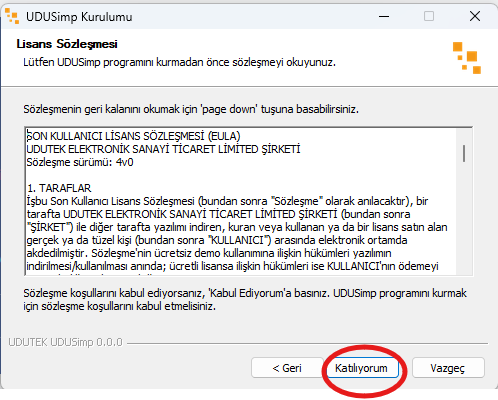
The License Agreement page shows the End User License Agreement (EULA). Read it; you can scroll with the scroll bar or the Page Down key.
If you accept the terms, click I Agree (marked in the picture; Katılıyorum in the Turkish wizard). The installation cannot continue without accepting the agreement.
Finish the installation
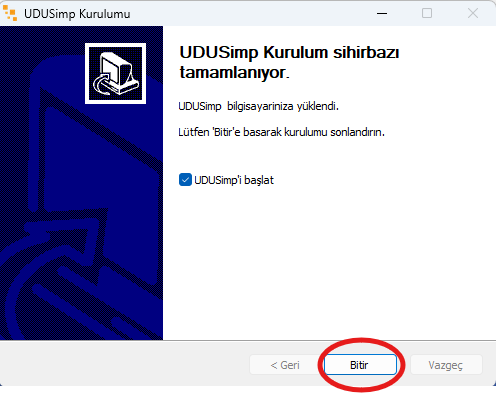
The files are copied in a few seconds and the Completing the UDUSimp Setup Wizard page opens.
Keep Run UDUSimp ticked and click Finish (marked in the picture; Bitir in the Turkish wizard); the program opens right away.
The program is installed under your user folder (%LOCALAPPDATA%\UDUTEK\UDUSimp). To remove it, use Settings → Apps → Installed apps.
Open UDUSimp from the desktop
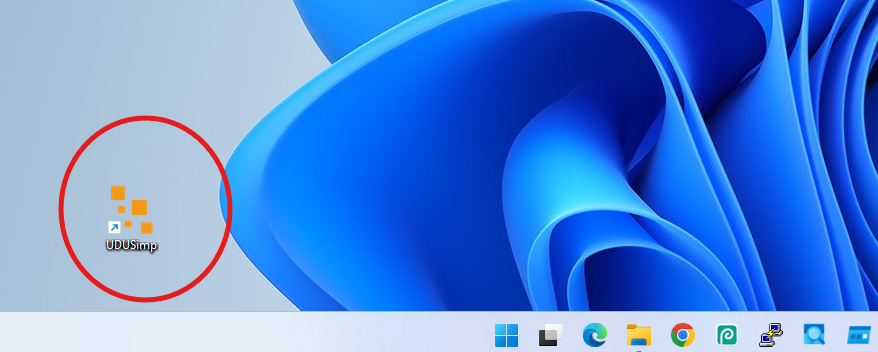
The setup adds a UDUSimp shortcut to your desktop (marked in the picture). Double-click it to open the program later.
You can also find UDUSimp by typing "UDUSimp" in the Start menu.
Get to know the main screen
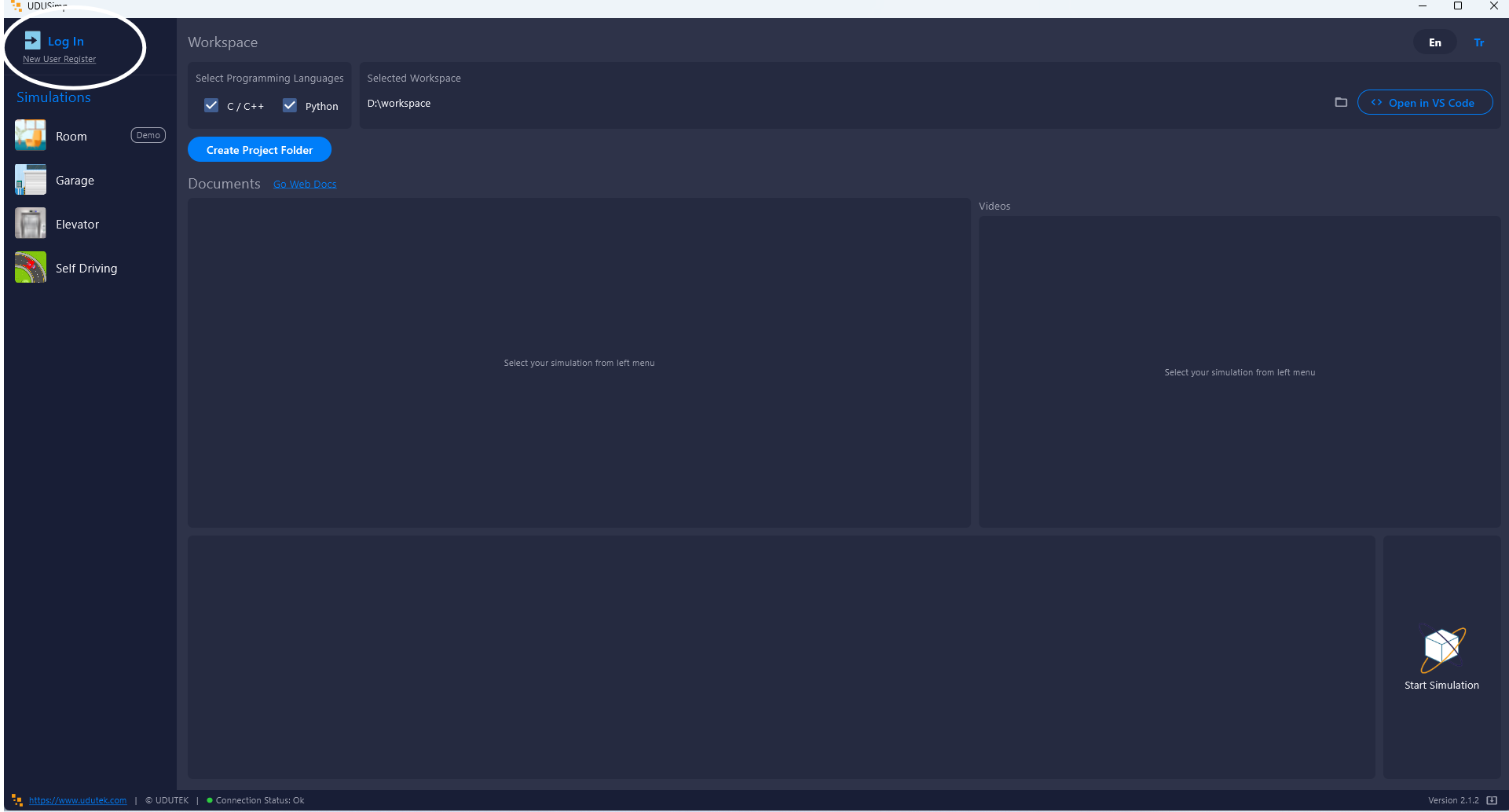
When UDUSimp opens you see the main screen:
• Top left: Log In and New User Register (marked in the picture).
• Left menu: The simulations: Room, Garage, Elevator, Self Driving.
• Top: Workspace settings: programming languages, selected folder and the Open in VS Code button.
• Middle: Documents and videos of the selected simulation.
• Bottom right: The Start Simulation button.
• Top right: En / Tr buttons to change the program language.
The Room simulation is a demo and can be used without logging in. The Garage, Elevator and Self Driving simulations require you to log in. If you do not have an account, create a free one on udutek.com with New User Register.
Log in
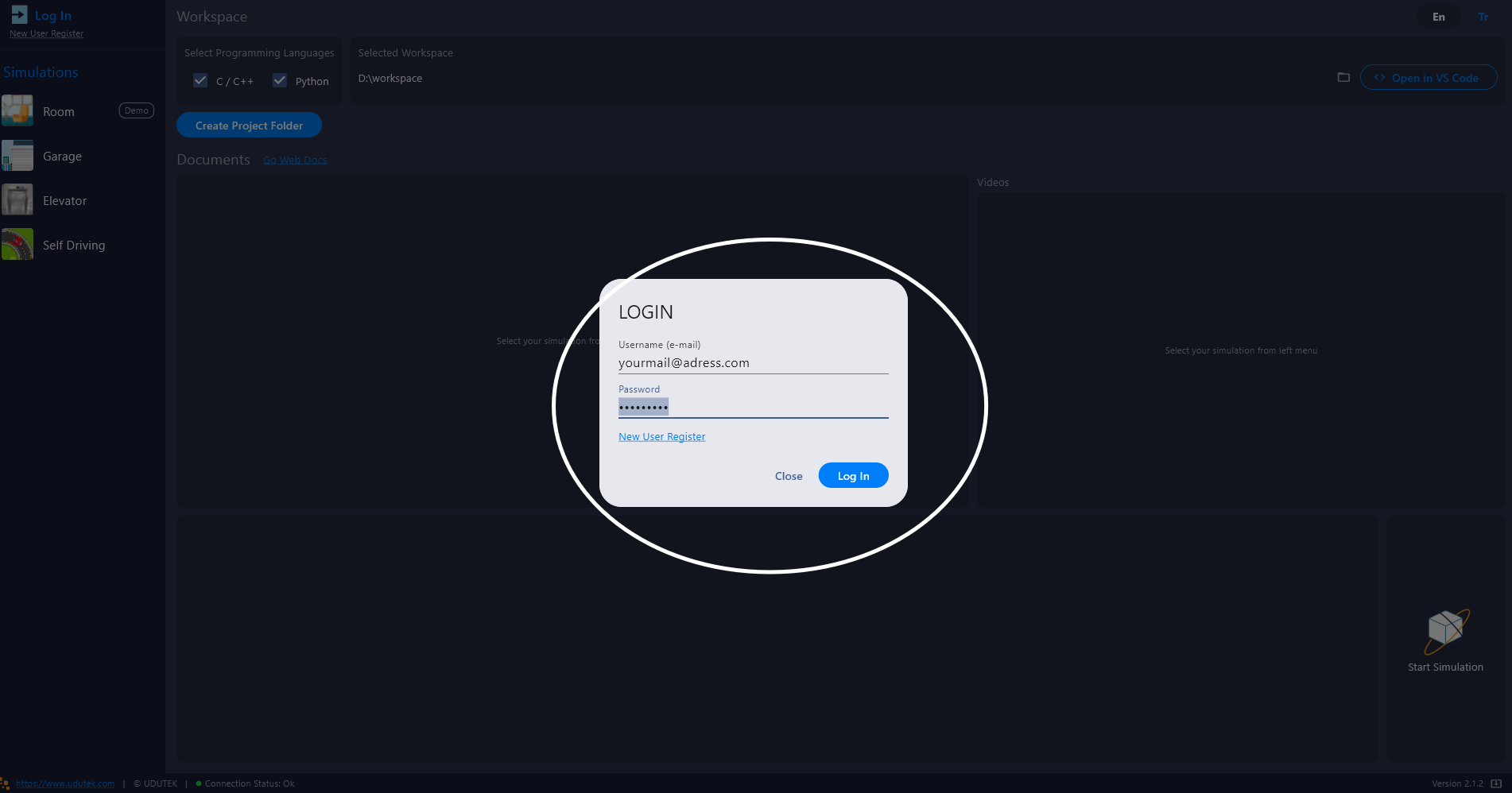
Click Log In. In the window that opens, fill in Username (e-mail) and Password and press Log In (marked in the picture).
To log in you need a valid UDUSimp license:
• If you have one license: log in with your own e-mail address and password that you registered on udutek.com.
• If you have more than one license (e.g. for a school or a class): each license has its own username and password. You can see them, copy the passwords and manage them on udutek.com under User → My Page → License & Invoices.
After a successful login, your username and the license end date appear at the top left. The session stays saved on this computer, so you do not have to log in every time you open the program.
Select the programming languages
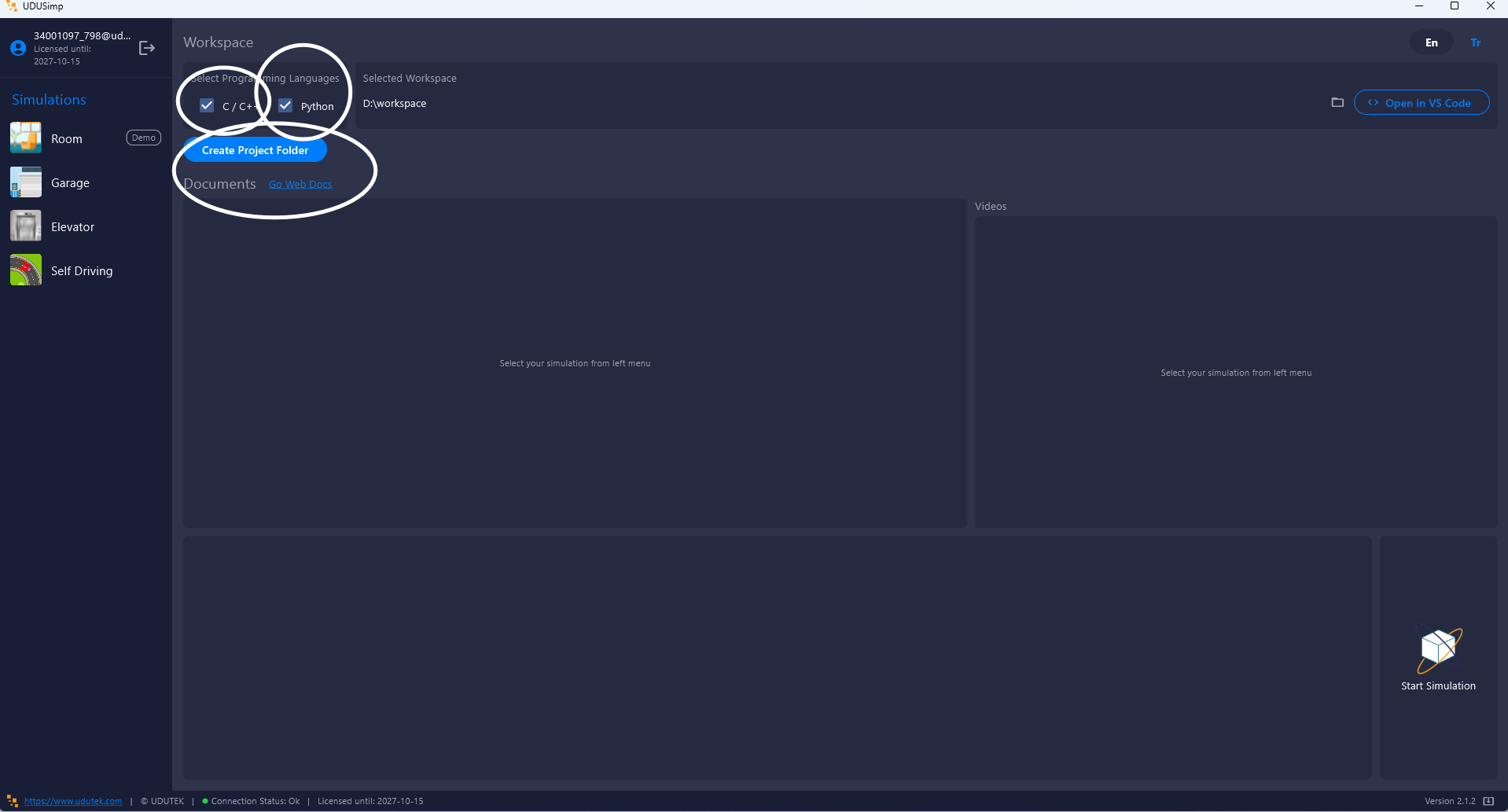
You need to create a project folder (workspace) that will hold your code and the simulation libraries.
First, tick the languages you will use under Select Programming Languages (marked in the picture):
• C / C++: if you will write C or C++ code.
• Python: if you will write Python code.
You can also select both.
Then click Create Project Folder.
Choose the workspace folder
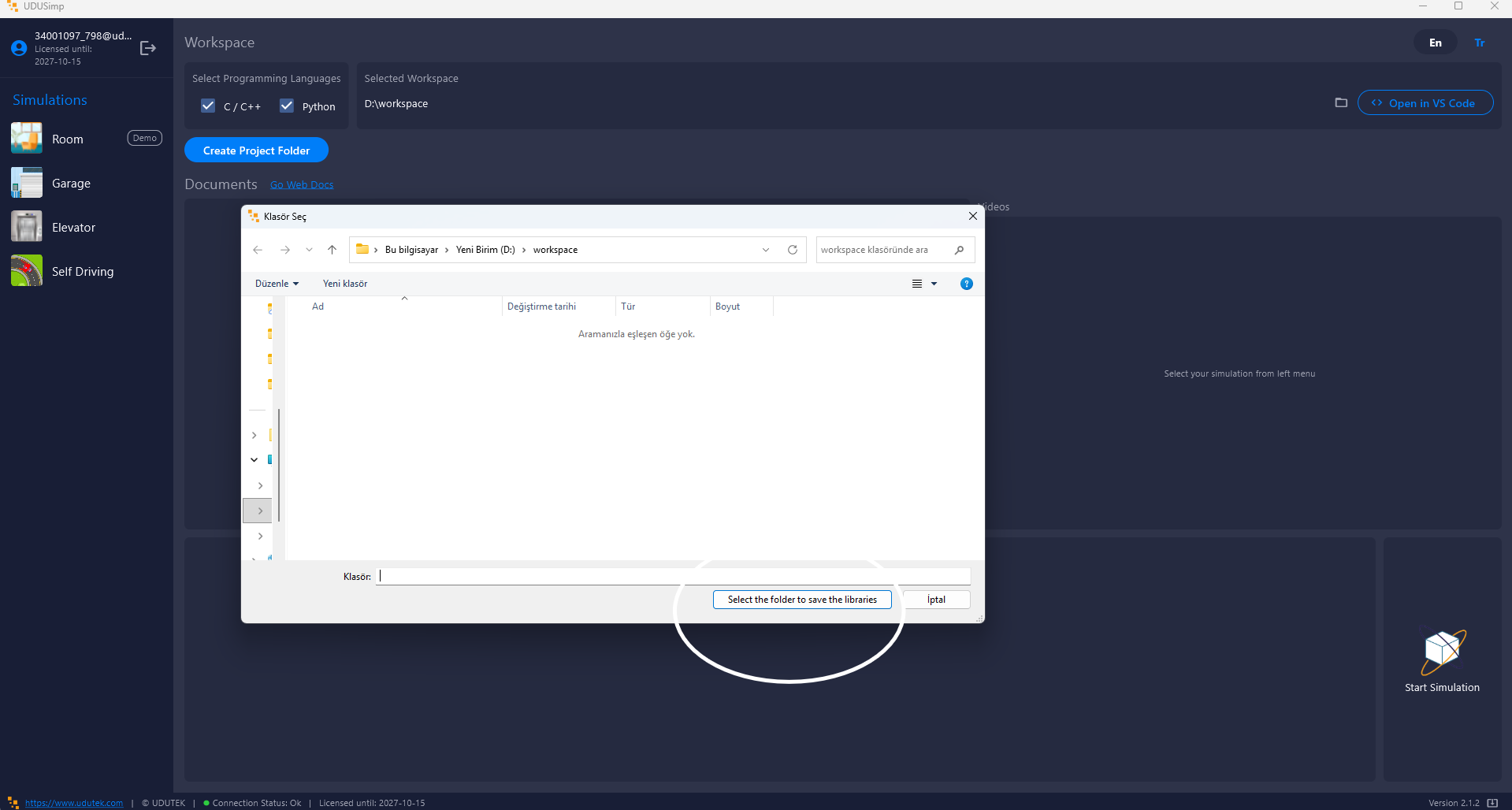
In the Select Folder window, choose the folder that will be your workspace and click Select the folder to save the libraries (marked in the picture). You can create a new folder with New folder at the top of the window.
We recommend a short path without spaces or special characters, e.g. D:\workspace or C:\udusimp, so that compiler and terminal commands work without problems.
UDUSimp downloads the libraries and start code for the selected languages and puts them in the folder. Each simulation gets its own folder: c_room, c_garage, c_elevator, c_otonom and, for Python, py_room, py_garage, py_elevator, py_otonom. The selected folder is shown under Selected Workspace.
Start the simulation and open VS Code
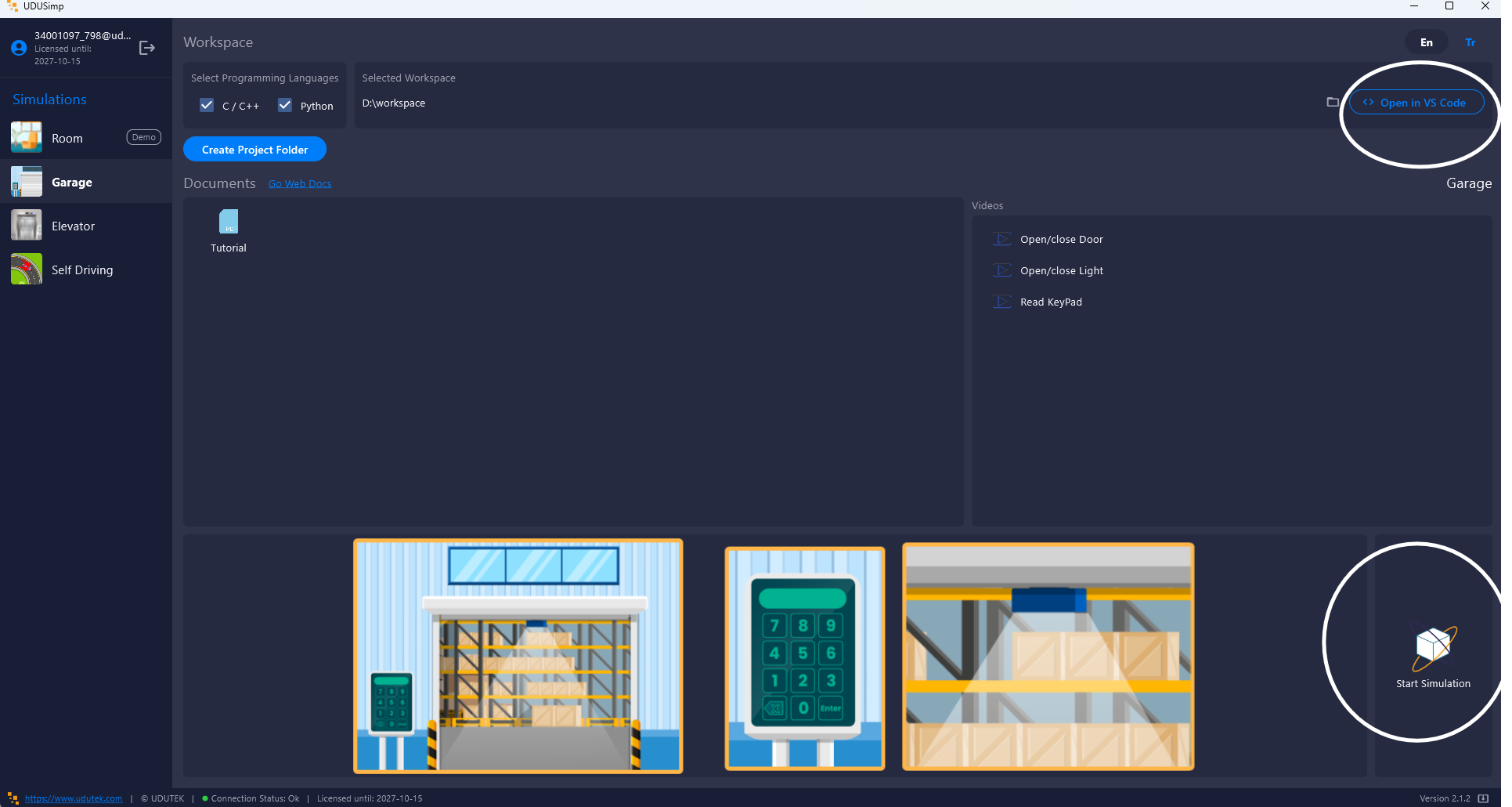
1. Select a simulation from the left menu (Garage in the example). Its documents, videos and pictures appear in the middle.
2. Click Start Simulation at the bottom right (marked in the picture). The simulation opens in a separate window.
3. Click Open in VS Code at the top right (marked in the picture). Your workspace opens in Visual Studio Code.
If VS Code is not installed, the program warns you; see the VS Code Editor Setup page to install it.
The order matters: start the simulation first, then run your code. sim_connect() in your code connects to the running simulation.
Install the compiler and Python (once)
C / C++ → Dev-C++
Dev-C++ comes with its own C/C++ compiler. Open the start file (e.g.
c_garage\start_code_garage.c) in Dev-C++ and press F11 to compile and run it. The step-by-step setup is on the Dev-C++ Editor and Compiler Setup page.Python → IDLE or Thonny
Python has no separate compiler; the Python interpreter runs the code. If you installed Python from python.org, use IDLE, the editor that comes with it; otherwise use Thonny, which comes with its own Python. Open the
.py file and press F5 to run it.We still recommend VS Code; you see all simulation folders in one window.
VS Code is an editor; it does not compile or run code by itself. For that you need a C/C++ compiler or Python on your computer. You only need the language you will use. This step is done once.
For C / C++: MinGW-w64 gcc (with MSYS2)
1. Download the MSYS2 installer from msys2.org and install it with the default settings (folder: C:\msys64).
2. Open MSYS2 UCRT64 from the Start menu and type the command below; answer the questions with Enter and Y:
pacman -S --needed base-devel mingw-w64-ucrt-x86_64-toolchain
3. Type "environment variables" in Windows search and open Edit environment variables for your account. Select Path, click Edit → New and add:
C:\msys64\ucrt64\bin
Then close all windows with OK.
For Python: Python 3
1. Download the latest Python 3 from python.org/downloads.
2. On the first setup screen, make sure to tick Add python.exe to PATH at the bottom, then click Install Now.
Check: Close and reopen VS Code and type these in the terminal. If you see a version number, the installation is complete:
gcc --version
python --version
gcc or python, the PATH setting is missing or VS Code was not restarted. If typing python opens the Microsoft Store, Python is not installed or Add python.exe to PATH was not ticked.Write and run your code
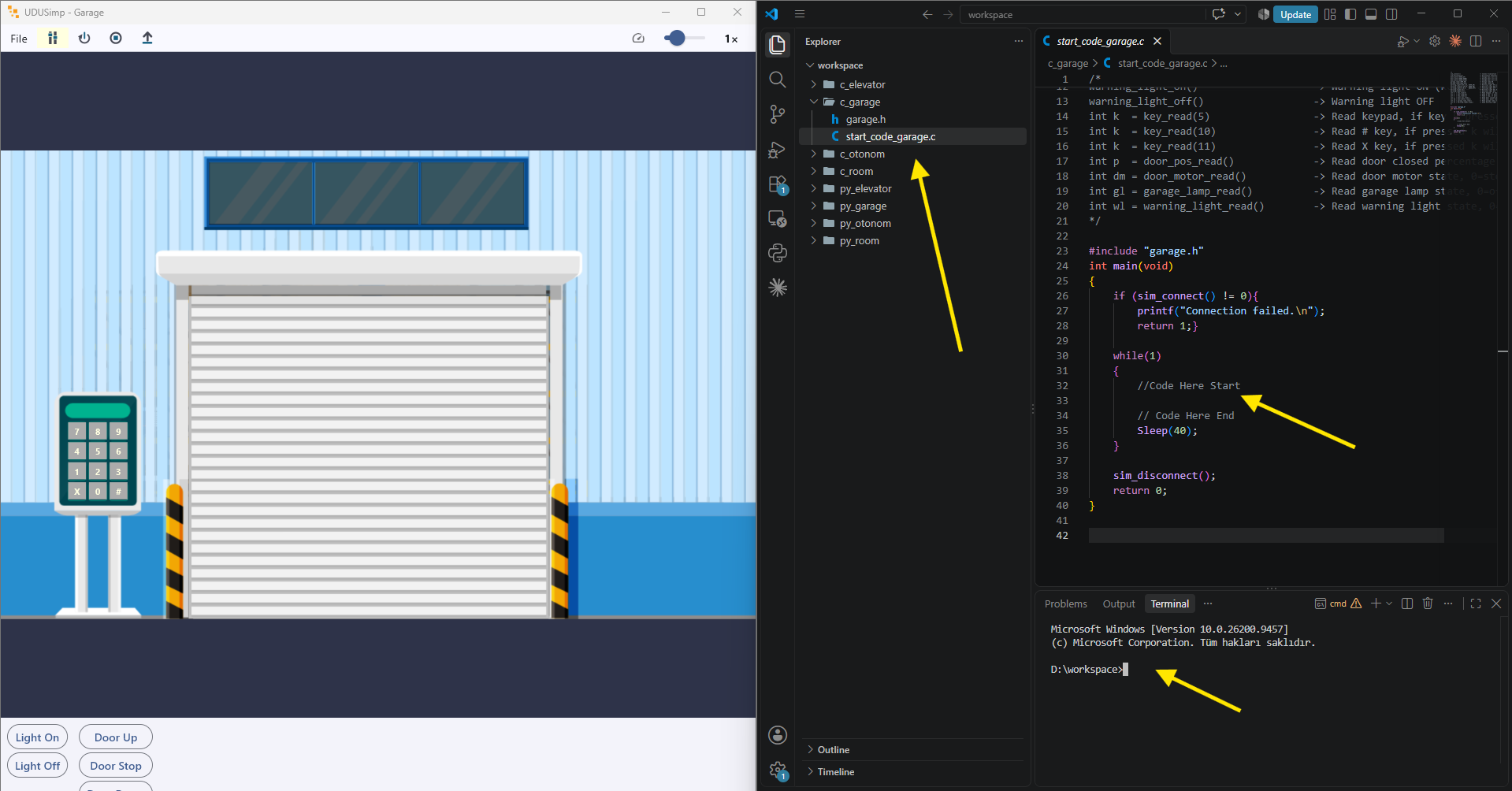
The picture shows the running Garage simulation on the left and VS Code on the right.
1. Open the file: In the Explorer (file tree) panel on the left of VS Code, open the simulation's folder and click the start file, e.g. c_garage/start_code_garage.c or py_garage/start_code_garage.py. The beginning of the file lists the library functions.
2. Write your code: Write your code between the //Code Here Start and // Code Here End lines and save the file (Ctrl+S).
3. Open the terminal: If the terminal is closed, use Terminal → New Terminal in the top menu. It opens in the workspace folder (e.g. D:\workspace>).
4. For C / C++, compile and run:
cd c_garage
gcc start_code_garage.c -o garage.exe
garage.exe
gcc compiles your code into the garage.exe program; the last line runs it. If your terminal is PowerShell, type the last line as .\garage.exe. For a C++ file (.cpp), use g++ instead of gcc.
5. For Python, run:
cd py_garage
python start_code_garage.py
Your program connects to the simulation and the simulation moves according to your code. To stop a program with an endless loop, press Ctrl+C in the terminal. To switch to another simulation's folder, first go back to the workspace with cd ...
With Dev-C++, IDLE or Thonny: You can also run your code without the terminal. Open the C/C++ file in Dev-C++ and press F11, or open the Python file in IDLE or Thonny and press F5. The library file (e.g. garage.h, garage.py) is in the same folder, so no extra setup is needed. Here too, remember to start the simulation first.