VS Code Editor Setup
What is Visual Studio Code?
Visual Studio Code (VS Code) is a free code editor by Microsoft. We recommend writing and running the C, C++ and Python code for the UDUSimp simulations in this editor. Follow the steps on this page to install VS Code on your computer in a few minutes.
Go to code.visualstudio.com- Free
- Windows 10 / 11, 64-bit
- No administrator rights needed (User Installer)
- Setup time: about 5 minutes
Open the VS Code website
Open the official Visual Studio Code website in your browser:
code.visualstudio.com
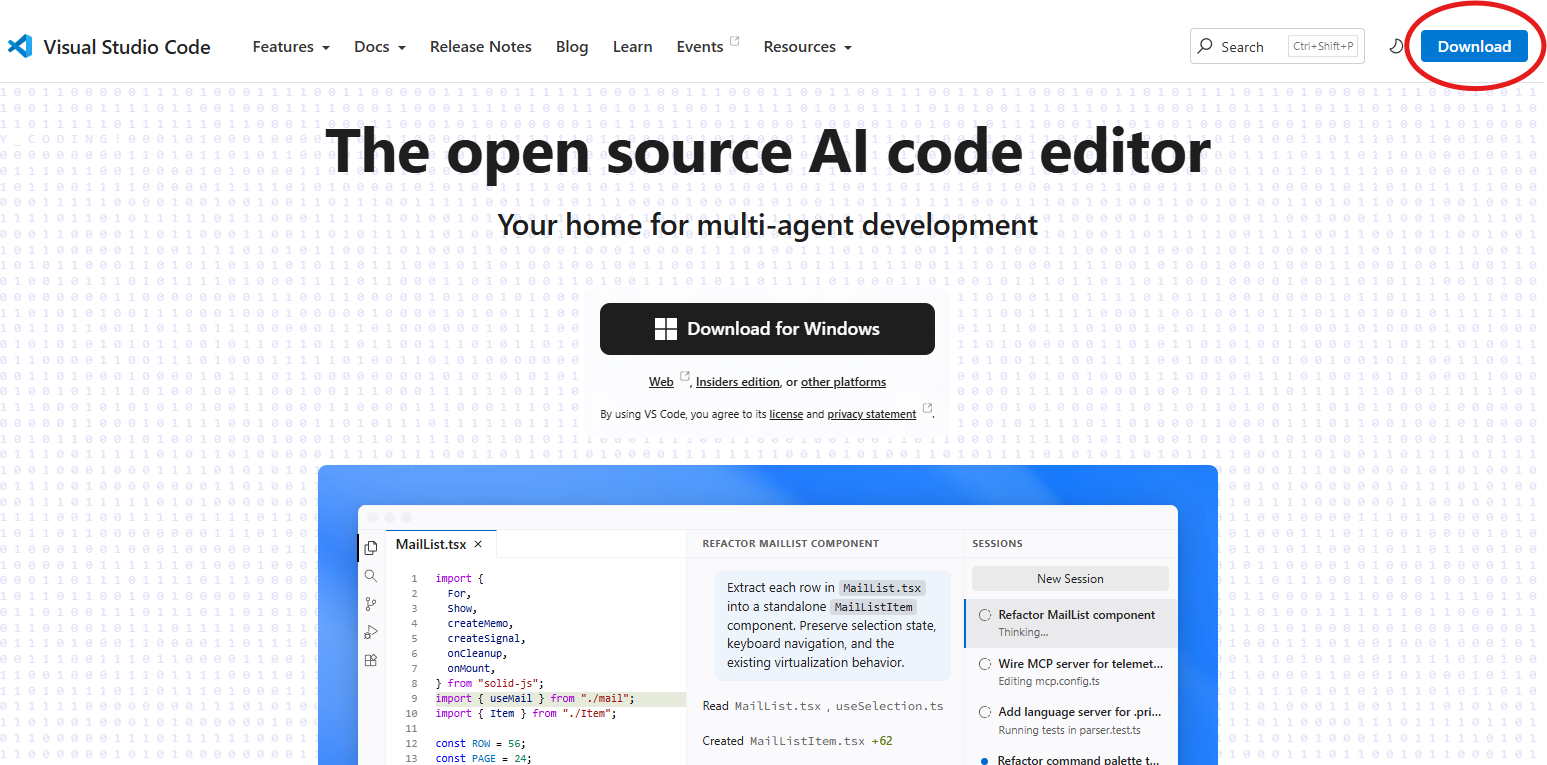
Click the blue Download button in the top right corner (marked with a red circle in the picture).
Note: The Download for Windows button in the middle also works, but we recommend the Download button so that you can choose the right version yourself in the next step.
Choose User Installer (x64)
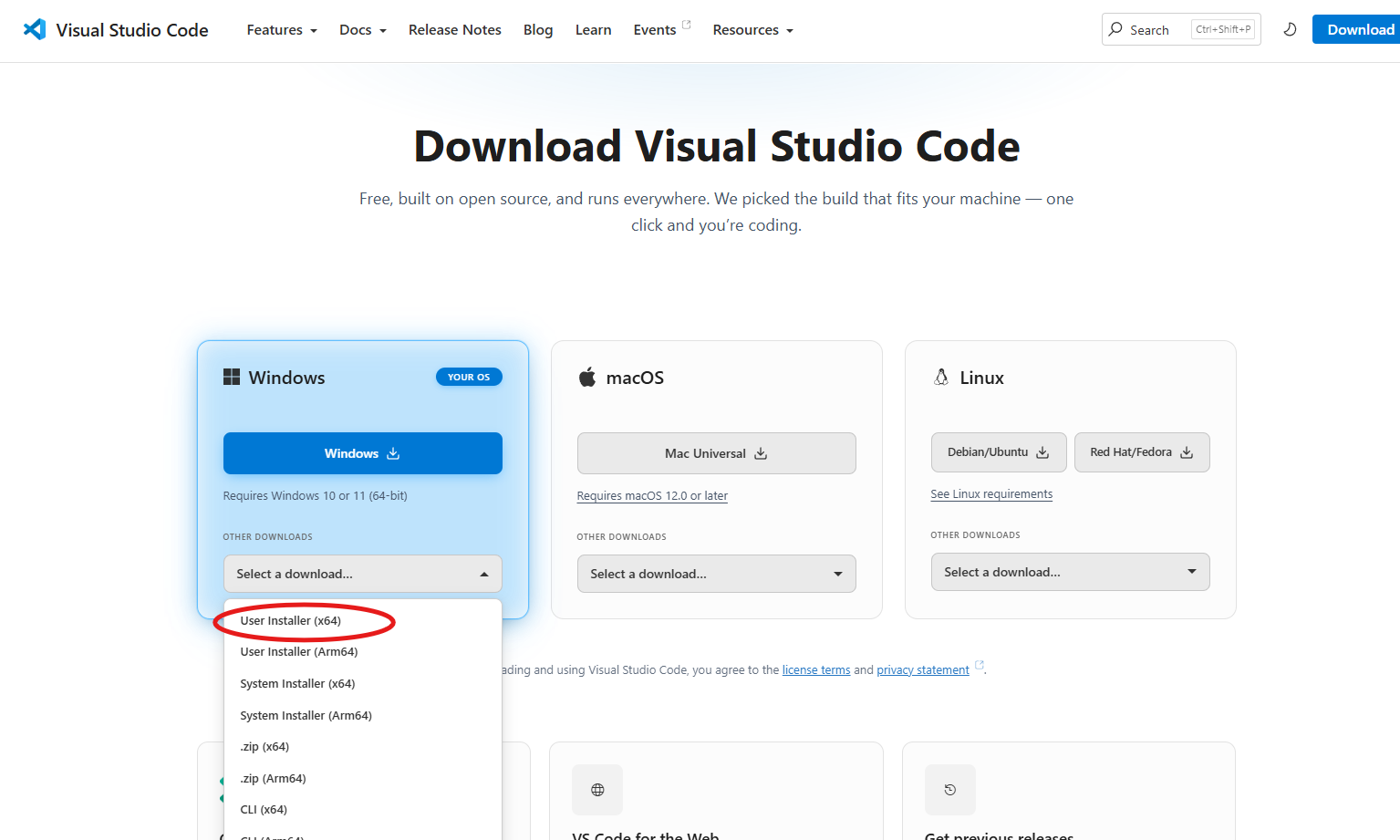
On the download page, find the Windows card. Under OTHER DOWNLOADS, open the Select a download... list and choose User Installer (x64) (marked with a red circle in the picture). The download starts right away.
Why User Installer? It installs only for your user account and does not need administrator rights, so it also installs on school and work computers. UDUSimp is installed the same way.
If your computer has an ARM processor (e.g. some Surface and Snapdragon laptops), choose User Installer (Arm64). If you are not sure, check Settings → System → About → System type.
Run the downloaded setup file
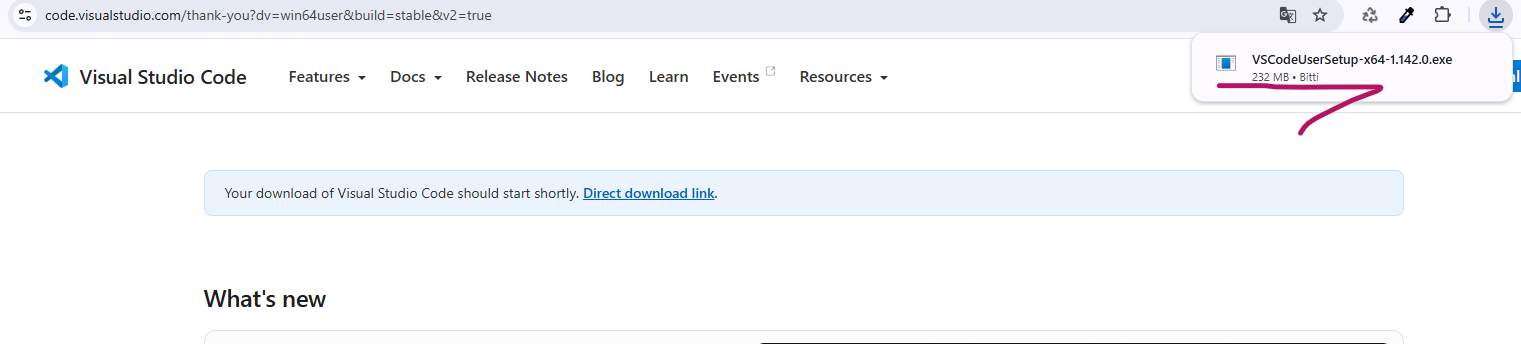
When the download finishes, click the download icon in the top right corner of your browser. You will see the VSCodeUserSetup-x64-....exe file in the list (marked in the picture). Click the file to start the installation.
If you cannot see it in the list, look in the Downloads folder in Windows Explorer.
If the download does not start, use the Direct download link on the page.
Complete the setup wizard
In the setup wizard, in order:
1. License Agreement: select "I accept the agreement" and click Next.
2. Select Destination Location and Select Start Menu Folder: keep the defaults and click Next.
3. Select Additional Tasks: tick the boxes below, then click Next:
• Create a desktop icon
• Add "Open with Code" action to Windows Explorer file context menu
• Add "Open with Code" action to Windows Explorer directory context menu (to open a folder in VS Code with a right click)
• Add to PATH (ticked by default, keep it)
4. Ready to Install: click Install.
5. When it finishes, keep Launch Visual Studio Code ticked and click Finish; VS Code opens.
Install the recommended extensions
Click the Extensions icon on the left side of VS Code or press Ctrl+Shift+X. Type the extension name in the search box and click Install:
• C/C++ (Microsoft): highlighting, auto-completion and error marks for C and C++ code.
• Python (Microsoft): highlighting, auto-completion and running Python code.
You only need the extension for the language you will use.
Open the UDUSimp workspace
In VS Code, use File → Open Folder... to open the workspace folder you selected in UDUSimp. In the Explorer panel on the left you will see the simulation folders such as c_room and py_room.
Write your code in the simulation's folder, next to the library file (e.g. c_room/main.c or py_room/main.py).
To run it, open the terminal from the top menu with Terminal → New Terminal, go to the simulation folder and run your program:
cd c_room
gcc main.c -o main.exe
.\main.exe
For Python:
cd py_room
python main.py
Remember: start the simulation in UDUSimp first, then run your program.
Next step
• For C / C++: the MinGW-w64 gcc compiler
• For Python: Python 3
The UDUSimp Setup page explains how to install them and run your first program step by step.